Affiliate links on Android Authority may earn us a commission. Learn more.
Android 17: Confirmed features, codename, leaks, release date, and everything else we know so far

Google has officially released Android 17 Beta 2, taking another step in the Android 17 release cycle. This release confirms some of the key features we’ll see in the Android 17 stable update. We’ve also gotten our hands on Android 16 QPR betas and even Android 16 QPR3 stable (with the March Pixel Drop), which give us a peek at unreleased features destined for the future. Here’s what we know so far about the next big platform update for Android!
Main index to primary sections:
Android 17: Name

Google used to name Android versions with dessert codenames, but it abandoned that tradition with the release of Android 10, sticking to only the version number for all future releases. Consequently, Android 17 will most likely be known simply as “Android 17,” with no dessert codename officially used for public-facing branding.
However, Google still uses the dessert codename internally. Android 15’s codename was Vanilla Ice Cream, while Android 16 jumped all the way back to “B” with Baklava. Google has chosen “Cinnamon Bun” as the dessert codename for Android 17. Before the official reveal, a trusted source within Google had shared evidence with us that clearly shows the company using “CinnamonBun” as the internal codename for API level 37.0, i.e., for Android 17. Code within the Android Canary release had also confirmed the Cinnamon Bun dessert codename.
A cinnamon bun — also called a cinnamon roll or swirl — is a sweet, baked pastry made with rolled dough, filled with a cinnamon-sugar mixture, and often topped with glaze or icing. It’s a popular dessert in northern Europe and North America, with several well-known chains specializing in its creation.
Android 17: Expected release date
Google has been switching things up with the Android 15 and Android 16 releases. Android 15 decoupled the platform update from the Pixel 9 series, giving the software release its independent timeline. Android 16 gave the platform a new timetable, with a major SDK release in Q2 and a minor SDK release promised for Q4.
For Android 17, Google will continue on the path it set for itself with Android 16, with a major SDK release in Q2 2026 and a minor SDK release in Q4 2026.
There are some changes expected for Android 17 Developer Previews, though. Google has replaced Developer Previews with Android Canary builds:
Moving forward, the Android platform will have a Canary release channel, which will replace the previous developer preview program. This Canary release channel will function alongside the existing beta program.This change is designed to provide a more streamlined and continuous opportunity for you to try out new platform capabilities and provide feedback throughout the entire year, not just in the early months of a new release cycle.
For the stable release, you might have to wait a few more months. Google released the stable version of Android 16 on June 10, 2025, so you will have to wait about a year from that date for another major Android release. Presuming Google doesn’t change its timelines, we expect stable Android 17 to be released sometime in June 2026.
Android 17 release milestones
- February 13, 2026: Beta 1
- February 26, 2026: Beta 2
Android 17: Confirmed features and changes
Google has added features to Android 16 after the initial stable release, primarily through the Android 16 QPR1, QPR2, and QPR3 releases. These features are live on Pixel phones running Android 16, but Android OEMs could adopt them either as part of a minor Android 16 update or wait until the Android 17 platform update. As such, we’re labelling these features as “carry over features” as they technically went live with Android 16, but will most likely reach the wider Android platform with Android 17.
Here are the features that Google has announced or confirmed are coming with the official Android 17 platform update:
- Carry over from Android 16 QPR1:
- Carry over from Android 16 QPR2:
- Auto-themed icons
- Expanded Dark theme
- Low light mode
- Enhanced HDR brightness
- Disable background blur
- Organized Sound Settings
- Ambient Always On Display: Blurred wallpaper on lock screen
- Lock screen widgets
- 90:10 split-screen multitasking on phones
- Built-in Parental Controls
- Identity Check expands to apps and watches
- Secure Lock Device
- Disable Failed Authentication Lock
- Time zone change notification
- Updated UI for sideloading apps
- Graphical app support in the Linux Terminal
- Enhanced support for touchpads and mice
- Intrusion Logging
- Carry over from Android 16 QPR3:
- Better app adaptability
- Vulkan 1.4 support and mandatory ANGLE support
- Versatile Video Coding (VVC) Support
- Loudness Management
- Enhanced VoIP Call History
- EyeDropper API
- Bubbles
- Limited Contacts access with the new Contacts Picker tool
- Handoff API
- New companion device profile for medical device apps
Material 3 Expressive

Google has officially announced Material 3 Expressive as the next evolution of Material Design. This UX update is set to arrive with Android 16, but not the first stable release. Instead, it has arrived with the Android 16 QPR1 update to Pixels. Most non-Pixels will get access to this with Android 17, albeit individual apps could have their own redesign on Android 16. If you’d like to try the changes ahead of its stable rollout, you can already do so, starting with Android 16 QPR1 Beta 1.
This sweeping UI update is a significant step in Google’s ongoing effort to make Android and Wear OS more visually engaging, emotionally resonant, and interactive. Some of its highlights include:
- Springier, natural-feeling animations that enhance touch interactions
- New icon shapes and refreshed typography
- Background blur effects for depth and focus
- Updated color themes
- Home screen and Quick Settings enhancements for a more dynamic layout
- Visual redesigns for many Google apps, bringing them in line with the new expressive aesthetic
You can learn more about Material 3 Expressive in our deep dive article.
Desktop Mode and related changes
Google has been working on developing its own DeX-like Desktop Mode experience for Android. This feature offers an intuitive, desktop-like interface on external displays, complete with a taskbar for launching pinned or recent apps in freeform windows.
Google announced this Desktop Mode as an Android 16 feature. However, the first stable Android 16 release does not include this feature, not even for Pixel devices. Instead, Pixel phones got this feature as a developer option with Android 16 QPR1, while Android 16 QPR3 (part of the March Pixel Drop) brought Desktop Mode forward as a stable feature. We expect Android OEMs to bake in the feature for their phones with Android 17.
Compared to the current, barebones desktop interface that appears when you connect a Pixel device to an external display, Android’s new desktop mode actually displays the taskbar and status bar. The taskbar is a big addition, providing access to your pinned apps and a better version of the app drawer. The taskbar can also show recent apps while in desktop mode, making it easier to multitask.
It’s also possible to launch multiple apps in floating windows simultaneously using the new desktop mode. Further, you can freely move, resize, or snap windows to the side, just like on desktop operating systems. This makes it easy to drag and drop content from one app to another, provided the apps you’re using support drag-and-drop.

Android 16 QPR1 Beta 3 includes shortcuts to quickly pin or unpin apps from the taskbar. When long-pressing an app icon in the app drawer, you’ll see a “pin to taskbar” shortcut in the context menu, while you’ll see an “unpin from taskbar” shortcut when long-pressing an app icon on the taskbar.
Desktop Mode is enabled by default on tablets, where it extends the desktop windowing feature introduced in Android 15 QPR1. The tablet screen can act as a second monitor, allowing you to seamlessly move app windows and the mouse cursor between it and the external display.
When desktop windowing is active on a tablet, Android displays the icons of recently opened apps in the taskbar. If many apps have recently been opened, the taskbar will be full of icons, which can feel overwhelming. To address this, Google added the taskbar overflow button with the release of Android 16 QPR1 Beta 2. The taskbar overflow feature provides “a simple, visual way for you to find the app you need when the taskbar is full.” Tapping the overflow button opens a horizontally scrolling carousel that shows previews of your recent apps.

You can see a gray, circular button located after the divider separating pinned and recent apps. Tapping it opens the overflow menu.
Android 16 QPR1 allows users to configure what happens when they tap the touchpad with three fingers. They can set it to perform a middle click, launch the assistant, go home, go back, or view recent apps.
Android 16 QPR2 release adds Circle to Search capabilities to Desktop mode.
Live Updates
Live Updates is one of the highlight features of Android 16, but it’s absent from the first stable Android 16 release. Instead, the first release supports progress-centric notifications, a new type of notification that merely displays progress and milestones on ride-share and food delivery apps.

In the first Android 16 stable release, the Android system treats these notifications just like other notifications. These are intended to save developers from having to build a custom solution to display progress in notifications, providing a standard format that is easier to adopt in their apps.
The full Live Updates experience includes Live Updates notifications appearing on the Always On Display, at the top of the notification list on the lock screen, in the Heads-Up display, and as a chip in the Status Bar. This experience resembles Apple’s Live Activities introduced in iOS 16, though Android’s implementation excludes media player apps from its scope.

The full Live Updates experience is available on Android 16 QPR1 Beta 2, which we managed to activate for the following screenshots:

Managing Live Updates is also straightforward. You can press and hold a notification and tap “Turn off,” or disable the feature from the app’s main notification settings page.
The full Live Updates experience is live on Android 16 QPR1 stable for Pixel devices, though it also needs apps to support the feature.
OEMs that don’t already have a Live Updates-like implementation will be distributing this feature to their phones with Android 17. OEMs like Samsung, OnePlus, vivo, and Xiaomi will incorporate Live Updates in their respective UX skins (though the timeline will differ), and even Wear OS smartwatches will get the feature.
Less intrusive phone call notifications
Android 16 QPR1 Beta 2 introduces a less intrusive phone call notification.
Until now, tapping on the call chip would bring you to the full-screen call UI. In Android 16 QPR1, this has changed to display the same UI element that you’d see in the notification shade, where you can hang up, toggle the speaker, and mute your microphone. To access the full-screen UI, tap this pop-up.
The feature went live on Pixels with the Android 16 QPR1 stable update.
Recents screen changes
With Android 16 QPR1 Beta 1, Google made some subtle changes to the Recents screen. Previously, only the app’s icon appeared above its task. Now, the Recents screen displays the app’s icon, name, and a downward-pointing arrow within a small pill-shaped button overlaid on the task.
Displaying the app’s name is a welcome clarification, clearly identifying which app each task preview corresponds to. The most impactful change, however, is the addition of the downward arrow. This icon is widely understood to indicate an additional menu, so its presence should help more users realize they can access further actions directly from the recents screen.
The dedicated “Screenshot” and “Select” buttons are now also enclosed in pill-shaped containers, creating a more consistent look in the Android 16 QPR1 Beta 1 release. Furthermore, the previously solid gray background has been replaced with a blurred version of the user’s wallpaper or underlying content, a visual effect aligning with Google’s new Material 3 Expressive theme.
This change is live in Android 16 QPR1 stable release for Pixel devices.
Quicker swiping in Recents
With Android 16 QPR1 Beta 2, users noticed that swiping away apps in the Recents menu is now faster than ever before. Previously, when you opened a bunch of apps, went to Recents (swipe up and hold from the navigation pill), and tried to close the apps, you would have to wait for the full animation to complete before you could successfully swipe close the next app. The system would seemingly ignore touch input until the animation was finished.
With Android 16 QPR1 Beta 2, Pixel users can immediately swipe away all apps as fast as possible, as the system no longer waits for the animation to finish. You can catch a demo of this in the video below, courtesy of the Reddit user:
This feature is live for Pixels on Android 16 QPR1 stable release.
Improvements to Factory Reset Protection
At The Android Show: I/O Edition, Google announced that Android’s existing Factory Reset Protection mechanisms will become even more powerful later in the year. While Android already has several mechanisms to deter bypassing the setup screen after triggering a factory reset, these new protections will restrict all functionalities on devices that are reset without the owner’s authorization.

Android will likely detect if someone bypassed the setup wizard (to bypass previous factory reset protection mechanisms), and will thus force another factory reset cyclically, preventing unauthorized use until the user proves ownership.
Since these upgrades are coming later in the year, they will not be part of the first stable release of Android 16. Instead, we expect this update to come with the Android 16 QPR1 update for Pixel devices and then to the wider platform with Android 17.
Customizable keyboard shortcuts
Android has many keyboard shortcuts for system actions and launching apps. In past releases, these were not customizable. Android 16 now lets you edit them, so for example, you could add “Meta + Shift + B” as an alternative key combination to launch the Chrome browser.
Since this feature went live with Android 16 QPR1 Beta 2, it is expected to reach the wider Android ecosystem with the Android 17 release.
Auto-themed icons
With Android 16 QPR 2 Beta 1 introduced automatic theming of icons into your selected palette color, even when the developer has not provided a monochrome version of the icon for Android to work with. The operating system uses a color filtering algorithm to render existing icons in a monochromatic style, allowing them to be tinted to match the system theme.
Google released the feature with Android 16 QPR2 stable release, so users can now enjoy a more visually cohesive look. Developers have no way to opt out of themed icons.
Expanded Dark theme
With Android 16 QPR2 Beta 1, Google added a new “expanded option under dark theme” that allows the system to “intelligently invert the UI of apps that appear light despite users having selected the dark theme.” With the Android 16 QPR2 stable release, this feature went live.

The expanded dark theme aims to create a “more consistent user experience for users who have low vision, photosensitivity, or simply those who prefer a dark system-wide appearance.” When enabled, the system uses the app’s isLightTheme attribute to determine whether to apply inversion. “If your app inherits from one of the standard DayNight themes, this is done automatically for you; otherwise, make sure to declare isLightTheme=”false” in your dark theme to ensure your app is not inadvertently inverted.”
This is intended only as an accessibility feature; hence, Google recommends developers implement a native dark theme if they haven’t already. You can toggle this setting by navigating to Settings > Display & touch > Dark theme on your Pixel.
Low light mode
Android’s screen saver function lets apps display useful info when your device is idle, but so far, you could enable only one at a time. This meant that if you wanted to use the Home Controls screen saver during the day but switch to the Clock at night, you had to toggle between them manually.
Android 16 QPR2 addresses this with a new Low light mode. Found at the bottom of Settings > Display & touch > Screen saver, this option automatically switches to a dimmed clock when the ambient light drops, regardless of which screen saver you have selected. This effectively gives you the best of both worlds: your preferred screen saver during the day and a subtle night clock after dark — similar to the experience on the Pixel Tablet.
Additionally, you can now prevent the screen saver from activating unless the device is wirelessly charging. To do so, toggle “restrict to wireless charging” under Settings > Display & touch > Screen saver > When to show.

It’s worth noting that these screen saver features are only new to older models, as they have been available on the Pixel 10 series since launch, complementing the lineup’s Pixelsnap wireless charging accessories.
Enhanced HDR brightness
Google was testing an “Enhanced HDR brightness” setting in Android 16 QPR1 Beta 1 that allows you to control how much HDR content brightens your Pixel phone’s screen. This setting, located under Settings > Display & touch > Enhanced HDR brightness, includes both a toggle to disable HDR support entirely and a slider to adjust the intensity of the HDR effect.
With the feature disabled, a “standard” (SDR) image and an HDR image will look the same on screen. When enabled, adjusting the slider dynamically adjusts the brightness of specific elements in an HDR image, such as the sky or water. This is possible because the HDR display mode enhances supported images and videos by boosting brightness, expanding the color range, and improving clarity.
This SDR/HDR brightness slider is available to users with Android 16 QPR2 Beta 1, and went live for all with Android 16 QPR2 stable release.
Disable background blur
Android 16 QPR2 lets you disable background blur effects system-wide. Simply navigate to Settings > Accessibility > Color & motion and toggle on “Reduce blur effects”.

Once enabled, you won’t see any blur in the Quick Settings panel, the notification shade, the lock screen, the app drawer, or the Recents menu.


Organized Sound Settings
Android 16 QPR1 Beta 2 cleans up the Sound & vibration submenu within the Settings app. Instead of presenting every setting in a single vertical list, Android 16 QPR1 Beta 2 separates them by category.
For instance, the “phone ringtone,” “default notification sound,” and “default alarm sound” options are now grouped under a new “sound patterns” section. Meanwhile, the “Spatial Audio” and “Media” items are under a new “Audio” section. The five volume sliders remain at the top of the page, but they’ve been updated with the more modern Material 3 Expressive design seen in the volume panel. Furthermore, the “audio will play on” entry no longer sits awkwardly between the media and call volume sliders but has been moved to the very top.
Here’s a gallery showing the Sound & Vibration settings page in Android 16 versus Android 16 QPR1 Beta 2:
The feature is available with Android 16 QPR2 stable release.
Ambient Always On Display: Blurred wallpaper on lock screen
Google introduced wallpaper support on the Always On Display back in 2018 with Android 9 Pie, and briefly implemented it on the Pixel 3 series before removing it on future models. Once again, Google has been working on an AOD wallpaper implementation called “ambient AOD.” We managed to get the feature working before its launch for these screenshots, showcasing the lock screen wallpaper and the corresponding AOD counterparts:
Code for the feature suggests that it will only be supported by particular displays, indicating that it could be restricted to some upcoming devices, like the Pixel 10 series.
Thankfully, the feature will be optional. We spotted clues within Android 16 QPR1 Beta 1 that suggest the feature will be under Settings > Display & touch.

The feature is available with Android 16 QPR2 stable release.
Lock screen widgets
Android used to allow lock screen widgets in its early days, but the feature was removed in Android 5.0 Lollipop in 2014. Google has been working to bring back lock screen widget support, and Android 15 QPR1 Beta 2 finally adds them to the Pixel Tablet.

To access them, swipe inward from the right edge of the lock screen. Then, tap the “customize” card to open the widget editor, where you can add, remove, or reorder your widgets.
With Android 15 QPR2 Beta 1, we managed to activate a feature that lets you resize any lock screen widget to take up an entire column. This will allow certain widgets to show more information at a glance, as demonstrated in the video embedded below:
These widgets are currently intended for tablets only, not phones. However, if you are curious, lock screen widgets will indeed come to phones, too. Google has mentioned that lock screen widgets will be available in AOSP for tablets and mobile with the release of Android 16 QPR1, slated to arrive in late Summer 2025.
We managed to activate it on Android 16 Beta 2.1 for a demo:
As you can see in the video above, lock screen widgets on phones will work differently than they do on tablets. The 2×3 grid seen on tablets is too wide for the narrow displays of most phones, so Google’s solution is to display one column of widgets at a time. More importantly, the “glanceable hub” isn’t accessed by swiping inward from the right edge of the lock screen, as it is on tablets. Instead, it’s accessed by triggering the screen saver by placing the phone on a charger or docking it and, in the future, by placing it upright on a stand.
Google says that OEMs can customize the mechanism that triggers the lock screen widget experience, but not the interface itself. The feature is available with Android 16 QPR2 stable release.
With the release of Android 16 QPR2 Beta 1, lock screen widgets are finally available on phones.
90:10 split-screen multitasking on phones
Android 16 QPR2 Beta 1 brings the long-awaited 90:10 split screen ratio, which is heavily inspired by (but not directly based on) OPPO’s Boundless View (also known as Open Canvas on OnePlus devices). This feature went live in Android 16 QPR2 stable release.

Built-in Parental Controls
Android 16 QPR2 introduces a built-in Parental Controls menu, providing a centralized location for managing device-specific restrictions. Parents can use this menu to set daily screen time limits, schedule downtime to automatically lock the device at night, and restrict specific apps via timers or total blocks. They can also easily add bonus time once a limit or scheduled break has been reached.
To ensure these rules stick, parents can secure these settings with a PIN. Additionally, the menu acts as a direct gateway to Google Family Link, allowing quick access to broader controls like School Time, purchase approvals, and location alerts.
Identity Check expands to apps and watches
With Android 16 QPR2 Beta 1, Google is expanding Identity Check to cover any app that uses the biometric prompt API. When Identity Check is turned on, and someone tries to access an app that invokes this API, Android 16 QPR2 won’t allow your screen lock credentials to be used as a fallback. Instead, it will enforce biometric authentication, preventing unauthorized access to your sensitive apps outside of trusted locations.
Identity Check will soon also let you use your smartwatch as a trusted unlock mechanism. When your phone is in an untrusted location but connected to a trusted smartwatch (compatible watches being Pixel Watch 3 and newer), Identity Check won’t require biometric authentication.

Both of these features went live with Android 16 QPR2 stable release.
Secure Lock Device
Android 16 QPR2 Beta 1 introduces a new “system-level security state” called “Secure Lock Device.” When Secure Lock Device is enabled (which can happen remotely via Find Hub), Google says that “the device locks immediately and requires the primary PIN, pattern, or password to unlock, heightening security.” Furthermore, “notifications and quick affordances on the lock screen will be hidden, and biometric unlock may be temporarily disabled.” Secure Lock Device will also block access to lock screen widgets and the digital assistant. This feature went live with Android 16 QPR2 stable release.
Disable Failed Authentication Lock

A new toggle in Android 16 QPR2 allows you to disable Failed Authentication Lock. Google says that “a user-facing toggle is being added to Theft Protection Settings, allowing users to enable or disable the ‘Failed Authentication Lock’ security feature (introduced in Android 15) that automatically locks down your device after multiple failed login attempts.”
Time zone change notification
Your Android phone can automatically adjust the time when you enter a new time zone. However, you are not notified of such a change.
In Android 16 Beta 1, we spotted strings for a new “time zone change” feature that will appear under Settings > System > Date & time. The description states that the feature will allow you to “receive a notification when your time zone is automatically updated.”

The notification’s title will say “Your time zone changed,” and the body will include the exact time zone you’re now in.
This Time zone change notification went live in the July 2025 Android Canary release and was graduated to the stable release with Android 16 QPR2 stable release.
Updated UI for sideloading apps
Android 16 QPR2 stable brings an updated UI when sideloading apps outside the Play Store. The new layout no longer displays the app’s name and icon at the top of the dialog (the “title”); instead, it shifts them to the center (the “body”). In their place, the dialog now highlights the current action (“Install this app?”, “Installing…”, “App installed”). The new dialog adopts newer Material 3 button styles.

Graphical app support in the Linux Terminal
The Linux Terminal app is an incredibly powerful tool, allowing developers and tech-savvy users to run full-fledged Linux software in a virtual machine. Since launch, however, it has been limited to command-line applications.
The Android 16 QPR2 stable update introduces support for graphical desktop Linux apps, such as Chromium, GIMP, and LibreOffice. To try it out, open the Terminal app and tap the Display button in the top-right corner to launch a session that supports graphical output. Please note that performance may be sluggish for now; smooth operation relies on GPU acceleration, which is expected to be available in a future release.

Beyond graphical support, Android 16 QPR2 grants the Linux Terminal expanded file access. Previously restricted to the Downloads folder, the terminal can now access nearly all shared storage — essentially, any file or folder visible to your standard file manager.
Enhanced support for touchpads and mice
As part of its efforts to bring Android to PCs with “Aluminium OS,” Google is refining the OS’s handling of input peripherals. Android 16 QPR2 delivers a variety of new features for touchpads and mice, including expanded gesture actions and robust accessibility options.
Starting with the touchpad, the three-finger tap gesture introduced in QPR1 is now more customizable. You can now configure it to launch a specific app of your choosing, expanding on the previous options (middle click, launch Google, go home, go back, or view recent apps).
Beyond touchpad-exclusive gestures, several improvements apply to both mice and touchpads:
- Action Corners:
- This feature allows you to trigger actions by moving the cursor into one of the screen’s four corners. You can assign a unique command to each corner, such as going Home, opening Recents, expanding the notification or Quick Settings panels, or locking the screen.
- Autoclick improvements:
- Android’s autoclick feature — which automatically clicks when the cursor stops moving — has received a major overhaul in Android 16 QPR2. A new visual indicator now warns you before a click registers, allowing you to react in time. There is also a new overlay menu with buttons to pause the autoclicker, reposition the menu, or switch the action type (from left-click to tap & hold, drag, double-click, right-click, or scroll). Furthermore, you can now fine-tune settings for click delay, ignore minor movements, and auto-revert to left-click after performing an action.
- Mouse/touchpad acceleration:
- Available for both input types, this toggle ensures that faster physical movements cover more screen distance. This reduces the need to repeatedly drag your mouse or finger across the surface to navigate large displays.
- Universal cursor:
- This option controls whether the cursor can flow between your phone/tablet and an external display. It is enabled by default but can be managed in Settings > Connected devices > External displays.

Finally, there is one new feature in Android 16 QPR2 that’s exclusive to mice: Controlled Scrolling. When enabled, scrolling speed becomes directly proportional to the physical movement of the scroll wheel, offering more precise control.
Intrusion Logging
Google announced Intrusion Logging as a new feature in Android 16 to help users detect whether their device has been compromised. Intrusion Logging collects “activity logs” that include details such as USB connection events, network information (such as browsing history), app installs, Bluetooth connections, lock screen info, and Wi-Fi connections. Your activity logs are encrypted using your Google account password and device lock screen, ensuring only you can view them. These logs are stored in a “private and encrypted Google Drive,” providing further protection against unauthorized access.
While the API is already available in Android 16, we spotted reports of a rollout only with the Android 16 QPR2 stable release, affecting only some users. We’re expecting a wider rollout for the feature with Android 17.
Flashlight Strength in Quick Settings
Android 16 QPR3 Beta 1 upgrades the flashlight tile in Quick Settings. Instead of being just a basic on/off switch, you can expand the tile by long-pressing on it. This reveals a new “Flashlight Strength” dialog featuring a vertical slider shaped like a flashlight beam. As you drag the slider from the bottom (off) to the top (full brightness), an arc representing a beam of light expands to visualize the increased intensity.
The feature went live on Pixels with Android 16 QPR3 stable release (as part of March Pixel Drop). Android OEMs will likely be able to integrate the feature with their Android 17 release.
Expandable location indicator
Android 16 QPR3 Beta 1 includes an expandable location indicator. Unlike the solid green background used for camera and microphone alerts, the location indicator features a solid blue background (though the system reverts to green if multiple permissions are actively being used).

More importantly, the “Microphone, Camera & Location” dialog now correctly lists the specific apps accessing your location. The feature is present in Android 16 QPR3 stable release too, so should be available to Android brands with the Android 17 release.
Magnify Keyboard
Android 16 QPR1 Beta 3 has a new “magnify keyboard” option under Settings > Accessibility > Magnification. This feature lets you “zoom into the keyboard to see emojis and letters when using full-screen magnification.”
This feature was spotted again in Android 16 QPR3 stable release, so it should make its way to the Android 17 stable release for the rest of the Android platform.
Better app adaptability

Android 16 phased out the ability for apps to restrict screen orientation and resizability on large-screen devices like tablets, foldables, and beyond. This feature is similar to features that OEMs have added to such devices, allowing users to run apps at any window size and aspect ratio. With Android 16, APIs and manifest attributes that restrict orientation and resizing will be ignored for apps (but not games) on large-screen devices.
However, Android 16 still allows app developers to opt out of this change. With Android 17, this change is now mandatory, and developers will no longer be able to opt out. Apps targeting Android 17 must be ready to adapt to a wide range of devices and use cases, whether multitasking on a tablet, unfolding a device, or using a desktop windowing environment. The app UI should fill the space and respect the device posture on large-screen devices (as this change does not apply to conventional glass-slab smartphones).
Note that users will still remain in control. They can explicitly opt in/out of using an app’s default behavior via the system’s aspect ratio settings.
Vulkan 1.4 support and mandatory ANGLE support

Vulkan allows developers to capitalize on the performance of modern smartphone GPUs to unlock features like ray tracing in games or multithreading.
In March 2025, Google announced that Vulkan is the official graphics API for Android. Essentially, Google aims to establish Vulkan as the GPU hardware abstraction layer (HAL) for Android, requiring all apps and games that use the phone’s GPU to do so via Vulkan. This includes game engines, middleware, and layered APIs such as Android’s HWUI, Skia, WebGPU, and ANGLE.
Starting with Android 16, Google said that “more devices will use Vulkan to process all graphics commands.” Specifically, Android 16 requires some newer devices to use ANGLE for some applications (meaning, only applications on an approved list will use ANGLE).
With the Android 17 release, Google will require new devices to use ANGLE for most applications (essentially, switching from an allowlist, meaning only certain apps utilize ANGLE, to a denylist, meaning all apps utilize ANGLE except for those on a specific list). By “new devices,” Google means devices that ship with chipsets built for the new Android release; devices upgrading to the new release won’t be forced to meet these new ANGLE requirements, in accordance with the Google Requirements Freeze program.
Versatile Video Coding (VVC) Support
With Android 17 (Beta 1), Google is introducing support for the Versatile Video Coding (VVC) standard, also known as H.266. The video compression standard can deliver video quality similar to or better than the original at lower file sizes, provided the Android device also supports it. This feature will be coming to devices with hardware decode support and capable drivers.
Loudness Management
With Android 17 (Beta 1), Google is introducing the CTA-2075 loudness management API. This allows apps to dynamically adjust audio playback loudness based on metadata from supported AAC content and device characteristics. The Android ExoPlayer automatically supports this functionality if loudness metadata is present in the media. The end result is that loudness will be normalized across apps that bake this feature in.
Enhanced VoIP Call History
With Android 17 (Beta 1), Google is introducing user preference management for VoIP call history integration in apps. This includes support for caller and participant avatar URIs in the system dialer, enabling granular user control over call log privacy and enriching the visual display of integrated VoIP call logs. In common parlance, apps can already integrate VoIP calls (like those from WhatsApp) into the system dialer’s call logs, but now users can choose whether to include these VoIP calls in those call logs.
EyeDropper API
In the 2510 Android Canary update, Google added a new system application named “EyeDropper.” It’s a small, simple app with a single purpose: providing a public API for other Android apps to implement a color picker.
This new, native solution means developers will no longer need to build their own in-app color pickers or import third-party libraries, simplifying development, saving time, and slightly reducing their apps’ file size.
With the Android 17 Beta 2 release, Google officially announced the EyeDropper API, which allows apps to request a color from any pixel on the display without requiring sensitive screen-capture permissions.
Bubbles
Google introduced the Bubbles API with Android 11 in 2020, allowing messaging apps to open conversations in a floating window. The floating window sits on top of other apps so you can quickly see or respond to messages from your favorite contacts. This feature works only for conversation notifications and can be opted out of, so many apps don’t support it. However, in theory, most Android apps should work just fine when placed inside a floating window. Code within Android 15 QPR1 Beta 2 indicated that Google was testing this theory, as it includes references to a “bubble anything” feature.
Once activated, the launcher adds a “bubble” button to the context menu that appears when you press and hold on any app on the home screen. Tapping this button opens the app — no matter what it is — in a floating bubble, as you can see below:
Here’s a video demonstrating what Android’s new “bubble anything” feature combined with the upcoming bubble bar could look like on tablets:
With Android 16 Beta 4, we spotted Google working to bring the bubble bar to phones:
The bubble bar on phones will allow users to switch between more than two apps. The expanded bubble bar shows only the five most recently opened bubbles, though the bubble overflow menu lists other previously opened bubbles. Google is also developing different categories of bubbles: chat, note, app, and shortcut. These categories will determine whether an app badge is displayed.
With Android 17 Beta 2, Google confirmed Bubbles as a windowing mode feature that offers a new floating UI experience, clarifying that it is separate from the messaging bubbles API. Users can create an app bubble on their phone, foldable, or tablet by long-pressing an app icon on the launcher. On large screens, there is a bubble bar in the taskbar where users can organize, move between, and move bubbles to and from anchored points on the screen.
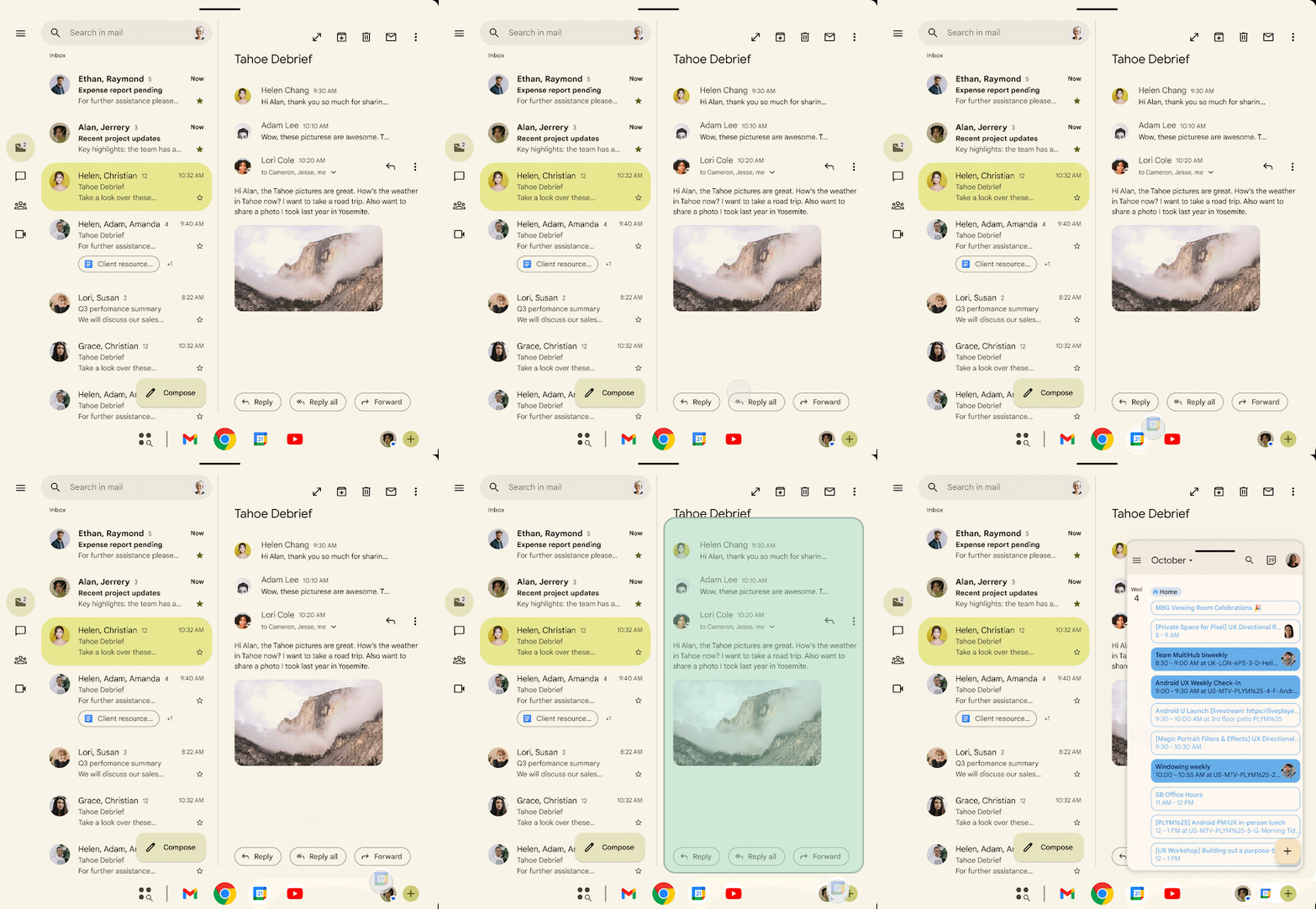
Bubbles isn’t fully enabled in Android 17 Beta and will be enabled in a future build of Android 17.
Limited Contacts access with the new Contacts Picker tool
In the Android Canary 2511 release, we spotted Google developing a new, dedicated “Contacts Picker” application. This app provides a new, privacy-preserving way for other apps to select contacts.
Strings within the Contacts Picker app reveal that you’ll be able to select one or more contacts to share with an app at a time. The app will then gain access to all available information for the selected contacts, including their addresses, birthdays, email, and names. Crucially, this access appears to be a one-time snapshot. The app will not receive any subsequent updates you make to a contact’s information, further protecting your privacy by preventing apps from tracking changes over time.
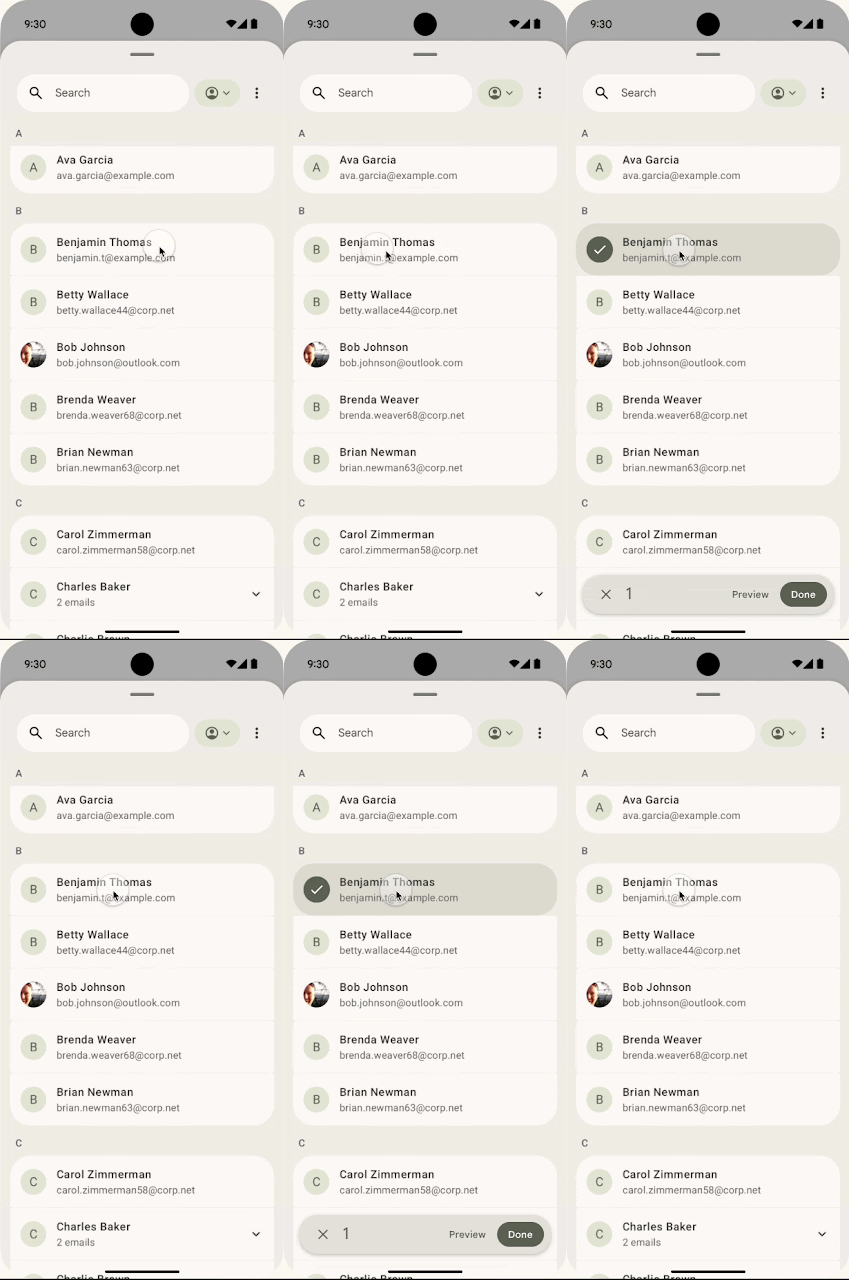
With Android 17 Beta 2, Google confirmed that Contacts Picker is a new system-level tool that grants temporary, session-based read access to only the specific data fields requested by the user, reducing the need for broad READ_CONTACTS permissions. It also allows for selections from the device’s personal or work profiles.
Handoff API
Back in July 2025, we spotted Google working on a Handoff feature that would allow users to sync notifications, share files, and continue apps across their Android devices. Further, we spotted new controls for file sharing and remote app control.
Android 16 QPR1 included code for a new system-level feature called “Task Continuity,” and, as you’d expect, it’s designed to let you seamlessly transfer an app’s current state from one Android device to another. The device you’re currently using will show a suggestion on its taskbar representing the running app from the other device. When you click this suggestion, the system initiates the handoff, passing the remote app’s state and relaunching it locally.
With Android 17 Beta 2, Google officially announced the new Handoff API, which allows developers to specify the application state to resume on another device, such as an Android tablet. When opted in, the Android system will synchronize state via CompanionDeviceManager and display a handoff suggestion in the launcher of the user’s nearby devices. This feature is designed to offer seamless task continuity, enabling users to pick up exactly where they left off in their workflow across their Android ecosystem. Critically, Handoff supports both native app-to-app transitions and app-to-web fallback, providing maximum flexibility and ensuring a complete experience even if the native app is not installed on the receiving device.
New companion device profile for medical device apps
In 2021, Google introduced companion device profiles in Android 12 to simplify the setup process for apps that connect to accessories such as smartwatches. Instead of requesting permissions one by one, these apps can use a device profile to show a single, bundled permission prompt. Furthermore, Android prioritizes the app’s process whenever the companion device is nearby or connected. This makes it much less likely for the OS to kill the app’s background service when memory is low.
Before Android 17, Android offered two companion device profiles for third-party applications: the Watch profile and the Glasses profile.
Within Android 16 QPR2 Beta 2, we found code for a third companion device profile for third-party apps, specifically the “Medical” profile. This new profile is intended for companion apps to medical devices, granting permissions for posting notifications, managing Bluetooth connections, and sending alerts at precise times. The new Medical role provides a standardized way for Android to recognize that an app has a critical function, ensuring it’s prioritized over standard battery- and memory-conservation measures.
With Android 17 (Beta 1), Google has officially introduced the Medical Devices profile. There’s also a new Fitness Tracker profile, which allows companion apps to explicitly indicate they are managing a fitness tracker. This ensures accurate user experiences with distinct icons while reusing existing watch role permissions.
Android 17: Leaked and upcoming features
Google has shared some details about Android 17 through its official announcements, but we’ve spotted a ton of changes in Google’s QPR updates that help paint a more complete picture of the changes we can expect to see in the final Android 17 release.
Google’s QPR updates and what they tell us about future Android releases
The Android platform follows an annual release schedule, which OEMs and the world at large have access to. Google also follows a second public release schedule for its Pixel devices in the form of QPR updates.
QPR refers to Quarterly Platform Release, an update track in which updates are released once every three months (quarter). So, we generally get an annual Android platform update on Pixels, followed by three QPR releases and then the next annual Android platform update.
While the features included in the Android platform update are final and available to the world, features released in the QPR updates are available exclusively to Pixel devices until the next Android platform update incorporates them. Further, Google also runs a separate beta program for the QPRs months in advance.
This gives us situations where we can try out new features coming to Android 17 (by checking them out in Android 16 QPR1 betas) before the stable Android 16 update is even launched! Later QPR betas give us even more features that can be chalked up to the next platform release, unless they are completely Pixel-exclusive.
As a result, we have a list of features that are coming to upcoming Android 16 QPR releases for Pixel devices, which are also likely to be added to the next Android platform update, Android 17. Let’s check them out!
All leaked and upcoming features in Android 17:
- Local Network Protection
- Android's big UI overhaul
- Liquid Glass-like blur across UI elements
- App lock
- New Emojis
- Swapped position for Wi-Fi and network icon in the status bar
- Double-tap to turn off display
- Split Notification and Quick Settings panel
- Revert the Internet toggle back to Wi-Fi and Mobile data toggles
- Horizontal volume slider layout for landscape mode
- Gemini-powered Notification "Magic Actions"
- Motion Assist
- Registered App Store
- Native Controller Remapping
- Enhanced UWB support
- Screen recorder toolbar
- Universal Clipboard
- Wireless ADB Debugging on trusted networks
- Standby for Hub Mode
- Automatic SIM PIN unlocking
- Screen casting external display
- Universal Cursor setting
- Pixel: Pixel Launcher search bar changes
Local Network Protection
Android 16 Beta 3 officially added the ability to test an upcoming “Local Network Protection” feature, which Google says is planned for a future Android major release, presumably Android 17.
Essentially, any app with the “INTERNET” permission can communicate with the Internet worldwide and with devices on the user’s local network. Local Network Protection will eventually require apps to request specific permission to access the local network. With Android 16 Beta 3, Google is giving app developers a chance to test if their apps are affected by this upcoming change.
Android’s big UI overhaul

With the above-mentioned Material 3 Expressive changes, Google is also planning a big UI overhaul for Android and expressive animations to accompany it. These changes were spotted and enabled in Android 16 Beta 4 and are widely available in Android 16 QPR1 Beta 1, but they are unlikely to be available in the Android 16 stable release. Instead, they could be included in a future QPR release or in Android 17 and beyond in the stable branch.
As part of the UI overhaul, we expect changes across several important areas, including status bar icons, clock font, combined notifications, the Quick Settings panel, a cleaner lock screen with collapsed notifications, and much more. The changes are pretty voluminous to list here, so check out our original coverage for the whole scoop.
Liquid Glass-like blur across UI elements
9to5Google reported that Google could be preparing to go all-in on the frosted-glass look across the UI. Telegram leaker Mystic Leaks posted and deleted images that showed off the blur effects in the volume menu and the volume bar across light and dark themes.
Telegram user @romashka also shared screenshots of blur in the power menu.
App Lock
In the Android Canary 2512 release, we’ve found evidence that Google is working on a system-level App Lock solution, which will finally bring native app locking capabilities to the OS. It’s unclear when the feature will arrive, but the earliest it could be available is with the Android 17 release.
We know from strings in Android Canary 2601 release that locked apps will still receive visible notifications, but the notification content will not be visible. For instance, if a user has locked the Google Messages app with App Lock and receives a message, they will only see a “New message” notification in their notification shade, instead of a notification with the message contents. For non-messaging notifications, the text will change to “New notification” without revealing the notification’s contents.
Telegram user RKBDI shared the UI from an internal OEM AOSP build, which shows the option for locking an app after long-pressing on its icon, as well as a screen lock message acknowledging its role in app locking:
New Emojis
Android 16 QPR3 Beta 1 includes support for the Unicode 17.0 standard, incorporating all the new emojis that come along, such as Distorted Face, Fight Cloud, Hairy Creature, Orca, and more.
Swapped position for Wi-Fi and network icon in the status bar
Android has long presented these status bar icons in the order: Wi-Fi, mobile network, battery, from left to right. While very minor, this order gives the right of your status bar a visual hierarchy, with the Wi-Fi and network icons complementing each other visually in shape, while the battery icon stays solid.

Android 16 QPR1 Beta 2 swaps the position of the Wi-Fi and mobile network icons in the status bar. The new order is mobile network, Wi-Fi, and battery.

This order gives them a more spaced-out look, each standing more independently and less complementary.
Google hasn’t explained why this change is in the QPR1 Beta 2 release, but if you want to take a guess, have a look at the iOS status bar:

Double-tap to turn off display
In Android 16 Beta 4, there’s evidence that Google is working to add a gesture to turn off the screen with a double-tap on the lock screen, and we managed to activate the gesture for a first look.
With this new gesture, you can double-tap on an empty spot of the lock screen to turn off your Pixel phone’s screen.
With Android 16 QPR1 Beta 1, we also managed to activate its Settings menu entry. When it goes live, the feature will be in Settings > System > Gestures.

Many Android phones already have this feature on their skins, but it would be the first time Pixels get it. The feature could also come to the broader Android platform.
Split Notification and Quick Settings panel
While Google didn’t showcase the split notification and quick settings panel when it showed off the Material 3 Expressive changes coming to the operating system, the company hasn’t abandoned the change, as we could spot progress in the code with the release of Android 16 QPR1 Beta 1. The feature could arrive in future Android 16 QPRs to Pixels and subsequently with Android 17 to the rest of the Android ecosystem. However, several OEMs already offer the split panels as an option, so many of us don’t actually need to wait to use this feature.
Telegram leaker Mystic Leaks claims that foldable phones and tablets will reportedly be forced to use the new split layout on the larger screens. There may be no toggle or setting to switch back to the classic combined notification and Quick Settings panel. That means tablets will always show the split view, while on foldables, the behavior will depend on the screen, with only the cover display showing the classic combined shade.
Swiping down from the left side of the inner screen will open up notifications, while swiping down from the right will open Quick Settings.
Revert the Internet toggle back to Wi-Fi and Mobile data toggles
Before Android 12, the OS had separate Quick Settings toggles for Wi-Fi and mobile data. With Android 12, Google combined the two toggles into a singular Internet tile. This tile launches the new Internet Panel, which includes switches to control mobile data and Wi-Fi. Even though the Internet Panel offered more functionality, users weren’t happy because it required more steps to toggle mobile data and Wi-Fi.
Within the Android 16 QPR2 source code release, there are clues suggesting Google may be looking to reverse this decision and split the Internet tile back into Wi-Fi and Mobile data toggles. Telegram leaker Mystic Leaks shared the image below:

There’s no information on when this change will go live, though.
Horizontal volume slider layout for landscape mode
We’ve spotted clues within Android 16 QPR2 Beta 1 that suggest Google may use a new horizontal layout for Android’s volume slider in landscape mode. This new horizontal slider will be positioned at the top-center of the screen, similar to how it is positioned on iOS.
Gemini-powered Notification “Magic Actions”
In 2018, Android 9 released Smart Reply, which provides suggested replies as tappable chips beneath a notification for quick responses. Android 10 expanded this with Smart Actions, offering contextual actions based on notification content. This Smart Actions feature powers the “Open Maps” chip when a notification includes an address. Smart Replies and Smart Actions are powered by on-device machine learning models, but are limited to short, canned replies that might not fully appreciate the context.
We’ve spotted evidence with Android 16 that suggests Google is developing a more advanced version of Smart Actions, dubbed “Magic Actions.” When the Magic Action feature is enabled, Android will hide Smart Actions and instead prominently display a new Magic Action button. This button is slated to receive “special visual treatment,” possibly indicating a custom animation when it appears or is tapped. Speculatively, the feature could tap into Google’s Gemini model to generate more personalized and powerful actions.
Motion Assist
Google has long been spotted working on a Motion Cues feature, which has recently been renamed to Motion Assist. The feature is fully functional, but lies dormant in Google Play Services. Google might have been holding off until Android 17 to enable the feature, as it could address certain limitations with a new system-level Motion Cues API.
Registered App Store
With Android 17, Google is introducing support for “Registered App Stores.”
A “Registered App Store” is a third-party app store that Google has certified as a legitimate platform for downloading Android apps. Any store that receives this certification will be eligible to use Android’s new “single store install screen” for installation. This new screen will use “neutral language” to inform users about the store they’re about to install and clarify which permissions it requires, such as the ability to install other apps.

To support these “Registered App Stores,” Google is working on core changes to the Android operating system. These changes will be ready “in a version of the next major Android release.” Google could introduce these changes as early as the initial Android 17 release, but no later than Android 17 QPR2. This gives the company until the end of 2026 to implement the support.
Native Controller Remapping
Android Canary 2511 includes code that suggests the next Android version, Android 17, may finally introduce native controller remapping, allowing users to be less dependent on individual apps and games to support remapping. We even managed to enable the feature to give you a good look:

Enhanced UWB support
Google is preparing to upgrade Android’s UWB stack with features from the FiRa 3.0 core specification. This new spec adds features like hybrid UWB scheduling, which allows multiple UWB applications and features to run concurrently. It also improves data transfer by allocating exclusive airtime to it, boosts the quality and integrity of UWB pulses, and enhances the security of the protocol’s physical layer. These enhancements will enable more sophisticated UWB use cases, like public transport fare collection, contactless payments, and logical access control.
We expect the changes to arrive with the Android 16 QPR2 release, which means the wider platform will likely get them with Android 17.
Screen recorder toolbar
As Android makes its way to PCs, Google is revamping the screen recording experience to better suit these large-screen devices, an effort that will benefit not only future Android PCs but also Android tablets. Code for the mentioned changes is present in Android 16 QPR2 Beta 3, but the changes aren’t live just yet.
The most visible change to the screen recorder is the replacement of the pop-up dialog with a new toolbar. When you tap the Quick Setting tile, a toolbar will appear over your current screen. While it can’t be moved or resized yet, it takes up less space than the old dialog and lets you see the content underneath.
This new toolbar also introduces new options, including a “show selfie camera” toggle. This presumably lets you record video from the front-facing camera while capturing your screen.
The toolbar retains the old options for recording a single app, showing touches, and recording audio, though the audio settings have been tweaked. Instead of a dropdown menu, the audio options are now listed as separate toggles, which, in my opinion, creates a cleaner look.
Telegram user RKBDI spotted the toolbar in an internal AOSP OEM build intended for phones, though it remains to be seen if phones will get the feature at the end:

The other big change Google is making is to the post-capture experience. Currently, when you finish a screen recording, Android sends a notification that it has been saved. Tapping this notification prompts you to open the file in a video player app because Android lacks a native UI for viewing screen recordings.
In a future release, Android will add a dedicated post-capture UI for screen recordings, similar to the one for screenshots. Tapping the “recording saved” notification will launch a new screen with a simple video player, featuring a seekbar, a play/pause button, and a mute button. Below the player, you’ll find several options: retake, edit, delete, and share.

The “retake” button will be handy for quickly starting over after a mistake, while the “delete” button adds a convenient way to discard a recording without having to find it in your gallery. To prevent accidents, Android will ask for confirmation before deleting. As you’d expect, the “share” button will launch the system’s share menu, and the “edit” button will prompt you to open the video in a compatible media editor.
While not shown in these images, Google is also working on adding partial screen capture support. Strings in the latest Android beta suggest you’ll be able to capture a “selected area” rather than the “entire screen” for both screenshots and screen recordings. There will also be a new, customizable keyboard shortcut for taking a partial screenshot.
Universal Clipboard
Within the latest Android Canary releases, we’ve spotted code that suggests Google may be working on a Universal Clipboard feature for Android 17.
Here’s a high-level overview of how Android’s Universal Clipboard could likely work:
- You copy some text on your Pixel phone.
- The Pixel System Service app detects the change to the clipboard.
- Pixel System Service broadcasts this change to Google Play Services.
- Google Play Services receives this broadcast.
- Google Play Services’ Continuity module takes the copied text and sends it to your linked PC.
This process should work in reverse, provided Google implements a background clipboard listener on Android PCs.
Wireless ADB Debugging on trusted networks
With the Android Canary 2511 release, Google quietly implemented a change that automatically enables wireless debugging when a device connects to a trusted network. This eliminates a significant hassle and could encourage more people to use wireless ADB Debugging as their primary method of connecting to ADB. This change is also enabled in Android 16 QPR3 Beta 1.
Standby for Hub Mode
The evidence for this isn’t strong, but Google could be working on Standby for Hub mode, similar to iOS’s Standby Mode, which transforms the iPhone into a mini smart display. When Hub Mode arrives on Pixels with Android 16 QPR1 (and other Android devices with Android 17), users will be able to seamlessly switch between their screen saver (displaying clocks, photo frames, etc.) and their widgets, similar to how iOS’s Standby Mode functions.
Automatic SIM PIN unlocking
Just like a PIN code can keep your phone safe by requiring entry when your device starts up, a SIM PIN does the same to secure access to your cellular account. When you turn on a phone with a PIN-locked SIM, it won’t be able to make calls, send texts, or use data until you enter the SIM PIN. This helps protect your SIM card, in case someone gets access to your phone and removes the SIM card and inserts it into another phone in order to intercept any 2FA codes.
In Android 17 Beta 2, we’ve spotted code suggesting Android could enable automatic SIM PIN unlocking. The core idea behind it appears to be that rather than manually entering a SIM PIN yourself on startup, you’d instead program the SIM PIN into Android, and then have the system itself send the PIN to unlock the SIM after a reboot.
Without your phone’s lock screen PIN, attackers have no chance of getting into your phone and having Android employ the saved SIM PIN. And if they remove the SIM and try to place it in another phone, that one won’t know the SIM PIN saved on your original phone.
This feature isn’t live yet in Android 17 Beta 2, so it could be implemented in a future Android 17 release.
Screen casting external display
Android 16 QPR3 Beta introduces the ability to cast screen contents of connected external displays.

Pixel: Pixel Launcher search bar changes
Android 17 Beta 1 brings custom shortcuts to the Pixel Launcher search bar, allowing users to replace the AI Mode shortcut with other options like Live, Translate, and more.
If this feels similar to the Google search bar widget, that’s because it is. With this release, the Pixel Launcher search bar is the Google widget itself. Google is also laying the groundwork to let users choose different search providers for the search box.
These are all the changes we expect to see in the Android 17 platform update in 2026. Let us know your favorite upcoming feature in the comments below!
Thank you for being part of our community. Read our Comment Policy before posting.