Affiliate links on Android Authority may earn us a commission. Learn more.

Samsung Galaxy Note 20 Ultra review: Last Note standing
Mar 2, 2022 — 12:00 AM ET
Samsung Galaxy Note 20 Ultra
What we like
What we don't like
Our scores
Samsung Galaxy Note 20 Ultra


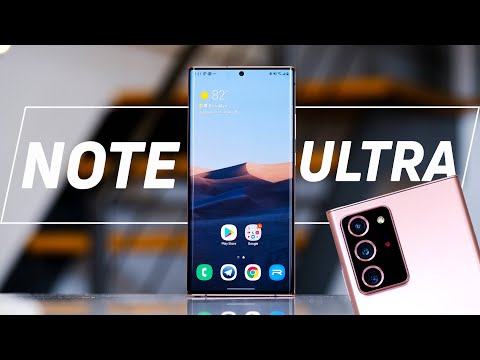
The Samsung Galaxy Note 20 Ultra was the company’s premier Note device for 2020 and, since there was no Note in 2021, is still the top Note you can buy. This everything-and-the-kitchen-sink smartphone offers a top display, the best specs for its time, and software meant to help users stay a step ahead of the pack. It’s a beast of a phone in more ways than one. It’s also a bit of a retreaded mish-mash of previous Samsung hits, including the Note 10 Plus and S20 Ultra. Did Samsung find the right blend of features in its 2020 flagship or did the Note lose its identity? Find out in the Android Authority Samsung Galaxy Note 20 Ultra review.
Update, November 2021: Added references to the Samsung Galaxy Z Fold 3 as well as the latest from Samsung in terms of software. Also updated to reflect latest pricing and on-going market relevance of the phone.
Design: Slightly warmed over

- Gorilla Glass Victus
- IP68 certified
- 164.8 x 77.2 x 8.1mm
- 208g
The Galaxy Note 20 Ultra is essentially a taller Note 10 Plus with the S20 Ultra’s beefy camera module. In other words, we’ve seen it before — and that’s a shame.
The Galaxy Note has always been a refined piece of hardware. The series typically eschews splashy design in favor of muted elegance. The Notes 8, 9, and 10 all had their own design cues that were simple and delicate at the same time. Toss in appealing color mixes and the Note was the best-dressed phone out there.
More reading: Samsung Galaxy Note 20 Ultra revisited — the good and the bad six months later
Samsung’s Note 20 Ultra carries over the basic shape of the Note 10 Plus in that it has two curved pieces of glass sandwiching an aluminum frame. If you compare the two, the similarities are obvious. The frame is nearly identical between them, though the overall chassis of the Note 20 is slightly thicker to accommodate the larger battery and taller to accommodate the larger display. It’s a gigantic phone. With a nearly seven-inch screen, how could it not be? It’s about the same dimensions as the Galaxy S20 Ultra, which was roundly chastised as being too large. Moreover, where the S20 has rounded corners, the Note 20 Ultra has pointy corners. It’s quite a package to put in your pocket.

The quality of the manufacture is second to none. Samsung has always known how to slap glass and metal together, and that’s clearly evident once again in the Note 20 Ultra. The fit and finish are flawless. The tight seal between components helps ensure the phone meets the requirements for IP68 certification against water and dust. The Gorilla Glass Victus should keep the phone from scratching and breaking when dropped.
The quality of the manufacturing is second to none. Samsung has always known how to slap glass and metal together.
The mirror-like, reflective colorways of the Note 10 are gone, having been replaced with Mystic Black, Mystic White, and Mystic Bronze, the latter of which looks strikingly like rose gold if you ask me. I really like the satin look and feel of the white and bronze models. The high-quality finish wards off fingerprints and other markings with ease.
There are two major changes to minor parts of the design: the power and volume buttons have been restored to the proper side of the phone, and the S Pen has been relocated. In a design misstep in 2019, Samsung put the power/screen lock button on the left edge of the phone. For anyone coming from a Note 8 or Note 9, the button was suddenly on the opposite side of the phone. Now both the volume toggle and power button are on the right edge, where most people can find them easily. The feedback of these keys is flawless. Oddly, Samsung moved the S Pen from its traditional location on the bottom-right corner to the bottom-left corner. We can only surmise that Samsung made this change to accommodate the camera module. Speaking of which…

Samsung debuted the giganto-module with the S20 series in February 2020. It is large in order to make room for the periscope zoom camera. That module has now found its way to the Note series. It’s a massive, obtrusive thing that I don’t particularly like the look of. It is big enough to get caught on your pockets when storing the phone, and it can get in the way of wireless charging on some charging mats. It also ensures that the phone wobbles when placed on hard surfaces.

On the top edge, you’ll find the SIM/microSD tray and a microphone, while on the bottom you’ll locate the S Pen, speaker grille, USB-C port, and another microphone. The left edge is bereft of any design or functional elements.
Related: The best Samsung Galaxy Note 20 Ultra cases you can get
In all, the design of the Samsung Galaxy Note 20 Ultra is fine. I wish it were more unique, or at least stood apart from its Samsung brethren more distinctly. I suppose there’s something to be said, however, for that family resemblance.
Display: It varies

- 6.9-inch Super AMOLED 2
- Infinity-O
- 120Hz variable
- WQHD+ resolution
- 19.3:9 aspect ratio
What’s not to love about a monster screen with no bezels? The Note 20 Ultra’s screen is seriously impressive. It relies on the latest screen tech from Samsung and ups the ante in some interesting ways that still remain competitive despite the phone’s age.
Let’s talk refresh rates. The big change for the Note series is the jump from a 60Hz refresh rate to a 120Hz refresh rate. On many phones, you can only activate the higher refresh rate, whether it’s 90Hz, 120Hz, or 144Hz, when the display is set to Full HD resolution. The Samsung Galaxy S20 Ultra, for example, has this limitation and so too does the Note 20 Ultra.
Rather than remain static at 120Hz, the Note 20 Ultra’s screen refresh rate is variable. It varies from as low as 10Hz when you’re viewing a web page to 24Hz when you’re watching a movie, to 120Hz for gaming. You cannot simply turn on the 120Hz setting have it stay there. Samsung says it does this to conserve power. The 120Hz rate is most obvious to your eyes when scrolling through menus, as the motion is incredibly smooth. Many flagship phones have now adopted variable rate displays that range to 120Hz, so this feature no longer stands out as unique.
Perhaps my biggest gripe with the screen is outdoor visibility. Despite the lush contrast ratio and 412nit max brightness, the screen sometimes looked washed out under direct sunlight. This isn’t a problem on the Note 10 Plus.
The Galaxy Note 20 Ultra has a fine display, but I was expecting a bit more visual punch from the screen — the feature that typically defines the Note series. As it is, it falls a little flat.
The phone’s optical fingerprint scanner is buried under the display. It’s a breeze to set up, though I found the positioning just a bit on the high side. The sensor is the same as that of the Note 10 Plus, but I found it worked more consistently at unlocking the device. That’s good news.
Performance and battery
- Qualcomm Snapdragon 865 Plus
- Adreno 680 GPU
- 12GB RAM
- 128/512GB storage
- MicroSD up to 2TB
- 4,500mAh
- 25W wired charging
- 15W wireless charging
- 4.5W reverse charging
Performance: Heated results
The North American variant Note 20 Ultra was among the first phones to ship with the Snapdragon 865 Plus processor. This hot-rodded variant of the 865 pushes clock speeds to the extreme, with one core capable of 3.06GHz. This is particularly vital for gaming. For taking photos and doomscrolling through Twitter? Not so much.
The one thing I want to say about the processor, other than that it is fast as hell, is that it gets really, really hot. The Note 20 Ultra warmed up all the time. Using the camera? The phone gets hot. Playing a game? The phone gets hot. This will be something to keep an eye on over time. It gets hotter than regular Snapdragon 865 phones and the concern is efficiency and a battery life. It’s not too hot to hold, but you’ll definitely notice it. I expect gaming phones to get hot, but gaming phones also have built-in cooling measures to keep performance at its best.
Snapdragon SoC guide: All of Qualcomm’s smartphone processors explained
We ran the usual benchmarks and found the results to be very good. The Samsung Galaxy Note 20 Ultra review unit didn’t necessarily beat every phone out there, and I have to wonder if thermals played a role. It also falls below the latest flagships with Snapdragon 888 silicon. That said, the Note 20 Ultra makes mincemeat of normal tasks. It basically just flies through everything.
The global version of the phone ships with the Exynos 990 processor, which falls behind in benchmarks and is significantly outpaced by the Snapdragon 865 Plus on GPU performance. Our team found that the Exynos model also developed significant heat during use, so something other than the processor may be playing a role here. Moreover, Exynos-powered Samsung devices are not as powerful or as efficient as their Snapdragon-powered peers. Bottom line, the Snapdragon model is generally superior. In this case, the Snapdragon model is reserved for North America, while the Exynos model is sold in most other markets.
Modern flagships at this time are mostly running the Snapdragon 888 and put up big performance numbers. Moreover, the 888 offers GPU, camera, and media improvements that the Note 20 Ultra cannot match. Such is the nature of generational leaps in silicon.
Battery: Average at best
Given the huge display and thirsty processor, I was expecting the Note 20 Ultra to have a ridonkulous battery. The S20 Ultra, for example, has a 5,000mAh power cell. Instead, Samsung stuck with 4,500mAh. That is an improvement over the Note 10 Plus’ 4,300mAh cell, to be sure, and yet I was hoping for more.
Does the Galaxy Note 20 Ultra battery get you through a full day? Absolutely. With the screen set to 120Hz, the Note 20 Ultra easily powered from morning to bedtime with just a bit of spare charge left. The Note 10 Plus’ battery lasted a bit longer, though not by much. Suffice it to say, you’ll see about seven hours of screen-on time with the Note 20 Ultra, if not more. That puts it in the middle of the battery pack.
It’s a different story if you set the refresh rate to 60Hz. Then you’re looking at close to 1.5 days of battery life at least, with screen-on time reaching eight hours.
These results are far from the best we've seen in our battery test, and that gives us pause.
Our battery torture test delivered some interesting results. With the screen set to the adaptive 120Hz, it lasted just three hours 52 minutes. With the screen set to 60Hz it lasted four hours and one minute. That’s a minuscule difference based on the screen refresh rate alone (~5%) and goes to show you that the variable rate is actually doing its job. However, these results are far from the best we’ve seen in our battery test, and that gives us pause. These times are lower by two hours, or about 33%, when compared to the S20 Ultra or LG V60. The Snapdragon 865 Plus could be burning a hole in the battery here.
See also: The best phone charging accessories
On the charging front, you’re looking at some straightforward options. The Note 20 Ultra supports 25W wired charging and ships with a 25W charger. Many of today’s flagships no longer ship with a charger, so that’s a bonus. Charge times were good. 15 minutes on the charger netted a 31% charge, while 30 minutes reached 58% and 60 minutes reached 92%. It took just over 71 minutes to reach a full charge from dead. Newer competing devices have upped the ante when it comes to charging speeds. Some phones support 65W and even 120W wired charging and top-up times that are well under an hour.
Wireless charging is capped at 15W, so expect to see slower top-up speeds, and reverse wireless charging, for accessories such as the Samsung Galaxy Watch 4, is limited to 4.5W. That’s half the reverse charging rate of the S20 series. Samsung didn’t provide a reason for the drop in reverse charging rate. Some newer phones ship with wireless charging rates in the 18W to 21W space, but these don’t always translate to faster charging times.
Camera: Improved

- 108MP PD OIS wide-angle (ƒ/1.8, 0.8μm)
- 12MP telephoto (ƒ/3.0, 1.0μm, optical 5x zoom)
- 12MP ultra-wide (ƒ/2.2, 1.4μm)
- Laser AF
- Front: 10MP 2PD AF (ƒ/2.2, 1.22μm)
- Video: 8K at 24fps in 16×9 or 21:9
The Samsung Galaxy Note series has long stood at the forefront of the mobile photography game, and yet the Note 20 Ultra feels more like it’s playing catch-up.
Samsung gave the Galaxy Note 20 Ultra a triple-camera system on the rear. The standard lens boasts a 108MP sensor, though by default it shoots binned 12MP images. It is joined by an ultra-wide 12MP camera, and a 5x optical telephoto 12MP camera. The S20 Ultra’s time-of-flight camera has been deleted from the Note 20 Ultra. Some of the features Samsung talks up include 50x zoom and 8K video capture.
The pixel-rich main sensor joins a flotilla of other 108MP-capable shooters on the market. The basic idea behind such a sensor is two-fold: First, to allow more light and, second, to offer incredible detail. This sensor is what powers the Note 20 Ultra’s good low-light performance.
Also read: The best camera phones you can get
Most standard daytime shots look excellent, if slightly oversaturated per the norm with Samsung. All the skyline and river shots below are spot on in their accuracy. Zoom in on the skyscrapers and you’ll see plenty of detail, though some noise too. If you opt to shot at 108MP rather than the binned 12MP, you’ll see even more detail. White balance has been corrected when compared to the S20 Ultra; it’s now more natural-looking. Perhaps most importantly, focus has been improved. The S20 Ultra’s 108MP shooter lacked phase detection and had a focusing issue. When in use, focusing often took time and results weren’t always perfectly sharp. The Note 20 added a dedicated laser focusing tool to ensure sharp shots. The addition worked. It’s faster to focus and delivers clearer photos.
The telephoto is plenty of fun. Thankfully, Samsung reigned in the horses a bit. Where the S20 Ultra had a 48MP, 4x optical telephoto camera that could perform hybrid zoom to 100x, the Note 20 Ultra keeps it simpler with a 12MP sensor and 5x optical zoom. Hybrid zoom is possible to 50x. You can capture shots at 0.5x, 1x, 2x, 4x, 5x, 10x, 20x, and 50x using simple on-screen buttons. Alternately, you can drag the slider up and down to find the right amount of zoom for the shot. The results are far superior to the S20 Ultra. I found images at various zoom lengths to be plenty sharp, though the 50x is more of a gimmick than a usable tool.
Then there’s the ultra-wide. Ultra-wide cameras are a good time. Samsung did a fine job of keeping the color profile similar between the lenses, and that’s abundantly clear here. Some of the ultra-wide shots I took of the river look nearly identical to the zoomed-in shots. This makes it easier to put together a series of photos that look the same. Exposure in the last shot below was a little off but I think it was thrown by the sun behind the clouds.
Related: Best phones with wide-angle cameras
Low-light performance was very good. The large sensor collects plenty of light and manages to keep detail that might otherwise get lost. In the plant shot below, the backlit plants could be blown out, but instead the entire scene is balanced well. The bright white building in the second shot reflects the most light and prevents the sky from being seen, but plenty of detail is visible in the foreground.
Last, the selfie camera is a simple 10MP affair. You can see in these samples that it does a fine job. The selfie camera loses the S20 Ultra’s ToF sensor, but you can see how clearly I stand out from the background in the sample below without portrait mode.

The camera app itself carries over most of the modes we saw on the Samsung Galaxy S20 family, including Single Take, Night Mode, and more. Single Take is the best of the lot. Press the shutter button to record three to 10 seconds of video. The mode then mixes up the footage to give you up to nine different photo types, including video, AI best shot, boomerang, and such. It takes practice, and isn’t always perfect, but I like that it presents you with options.
Then there’s 8K video capture. You can snag 8K video at 24fps in either 16:9 or 21:9. Normal video I shot with the phone looked excellent. All you need to do is set it to 4K at 60fps and sit back and enjoy. It’s sharp, colorful, properly exposed, and on-point when it comes to white balance. You’ll be impressed. Video also supports live focus mode, or bokeh. The video live focus is not perfect, but it can add a cool look to your video results.
You can view full-resolution photo samples here.
The Samsung Galaxy Note 20 Ultra remains a competitive camera option despite its age. While newer phones have eclipsed it in imaging performance, the margin of improvement isn’t leaps and bounds larger.
Want more Note 20 Ultra camera action? Here’s a head-to-head comparison of the Note 20 Ultra and the S20 Ultra’s cameras.
Software: Note for note
- Android 11 (Android 10 out of the box)
- One UI 3.1 (One UI 2.5 out of the box)
Other than the software associated with the S Pen, which we’ll talk about below, One UI itself is identical to what’s available to other modern Samsung phones. One UI is a fairly heavy-handed skin when it comes to the fonts, icons, and general appearance of the desktop. Things you don’t like can probably be changed with an icon pack or other setting control. The Note 20 Ultra initially launched with Android 10 and One UI 2.5 (pictured in the screenshots), but was moved to Android 11 and One UI 3.1. Samsung is already beta testing Android 12 and One UI 4.0 on the Galaxy Note 20 Ultra. You can sign up for the beta program to test the software for yourself. Samsung hasn’t made a firm commitment on timing for the initial Android 12/One UI 4 rollout.
Importantly, Samsung has committed to three generations of Android updates for many of its top phones, including the Note, S, and A series. That’s really good news for Note 20 Ultra owners, who have already been updated to Android 11 and should still see Android 12 and 13. Moreover, Samsung has become consistent about pushing monthly software patches to its phones and the Note 20 Ultra will see four years of those.
The most significant software feature on the Note 20 Ultra is its integration with Windows, which has been expanded and empowered. It’s now even easier to connect your Note with your Windows 10 PC thanks to an icon in the Quick Settings menu. Swipe down, tap the link, and away you go. You’ll need both machines to be on the same Wi-Fi network, as well as the latest patches on the Windows 10 machine. Last, you’ll need to sign in to your Microsoft account on both devices.
The tool is called Your Phone. Your phone’s home screen runs as an emulated window on the PC screen. This makes your phone effectively just another window to manage on your PC desktop. In other words, you can ignore your actual, physical phone in favor of the virtual one. I found the interaction to be a bit laggy, but I don’t have the most modern Windows laptop.
Still, there’s value here, in that it puts everything on the same screen. Moreover, Reminders that you set on your phone are automatically synced to Outlook, To Do, and Teams on your PC.
S Pen, DeX, UWB: Handy

Every year Samsung tries to find a new way to make the S Pen stylus a vital instrument. With the Note 20 Ultra, the vitality comes from Air Actions — gestures you draw in the air to initiate specific actions with the S Pen — and other features in the Samsung Notes application.
Air Actions
Samsung calls Air Actions “Anywhere Actions.” Why? Because you don’t need to perform the S Pen actions on or just above the screen, you can perform them anywhere. What are they? Basically, you draw a “V” in the up, down, left, and right directions, or draw a squiggle. Each of these gestures conjures a reaction on the phone as if you were waving a wand. Draw an upside-down “V” to go to the home screen, or a left-facing “V” to go back a screen. Drawing a squiggle can take a screenshot. You can also customize the actions if you wish. I had trouble with some of them, but they worked in practice.
It’s hard to see the utility in these actions, as the Android swiping gestures accomplish much the same things faster and more consistently. I do like the screenshot gesture Air Action, though, as drawing that squiggle in the air is often faster than pressing the two side buttons.
Samsung Notes
Samsung really beefed up the Notes application and I find it far more powerful than it’s ever been. First, there’s auto save and sync. Samsung Notes can save your work across multiple devices (phone, tablet, PC) automatically. Syncing wasn’t always instant, but it was generally pretty quick. Moreover, a new folder structure makes finding your notes a speedier experience.
Other features include the ability to annotate PDFs, set templates, export to PowerPoint files, add audio bookmarks, and automatically straighten your text. Let’s talk about these last two really quickly.
With audio bookmarks, you can attach and sync voice recordings to your written notes. This makes it easier to find a word or text note in the file and then instantly hear the audio from the corresponding spot. This tool worked fairly well, but you have to have clear audio for it to work. Auto straighten is pretty neat. Let’s say you scribble out some notes at an angle. Samsung Notes can now recognize the direction, pattern, and lines of your handwriting, straighten the text out, and then apply printed text to ensure that it is legible. This might be a lifesaver for me, as I am terrible at taking notes.
DeX
DeX, Samsung’s desktop-like environment when using the Note 20 Ultra, has a feature that’s worth getting at least a little excited about: it can stream the desktop wirelessly to a TV. There are some caveats.
Samsung says all smart TVs that support Miracast should be able to handle DeX streaming, but that wasn’t my experience. My Samsung smart TV couldn’t make the connection with the phone. Samsung recommends TVs newer than 2019 for the best results. I guess my 2012-era set just doesn’t cut it. If you’re able to get it to work you can cast movies or photos while multitasking on your phone, checking email, and such. Moreover, when connected to a second screen, the Note 20 Ultra turns into a touchpad for navigating the screen.
These power-user features take a bit of work to sort out, but can be quite handy.
UWB
Last, there’s ultra-wideband (UWB) for device-to-device sharing. As long as you have two Samsung Galaxy Note 20 Ultras, you can more easily share files seamlessly. The tool works more like Apple’s AirDrop than anything else, allowing you to push big files such as photos or video clips from one phone to another. Bummer that this is limited to the Note 20 Ultra. Not even the budget Note 20 makes the cut.
Samsung Galaxy Note 20 Ultra specs
| Samsung Galaxy Note 20 | Samsung Galaxy Note 20 Ultra | |
|---|---|---|
Display | Samsung Galaxy Note 20 6.7-inch AMOLED Infinity-O FHD+ resolution 20:9 aspect ratio 60Hz refresh rate | Samsung Galaxy Note 20 Ultra 6.9-inch AMOLED Infinity-O WQHD+ resolution 19.3:9 aspect ratio 120Hz refresh rate |
Construction | Samsung Galaxy Note 20 Plastic (aka Glasstic) body Flat display Gorilla Glass 5 display cover | Samsung Galaxy Note 20 Ultra Metal and glass body Curved (Edge) display Gorilla Glass 7 display cover |
CPU | Samsung Galaxy Note 20 NA: Qualcomm Snapdragon 865 Plus Global: Samsung Exynos 990 | Samsung Galaxy Note 20 Ultra NA: Qualcomm Snapdragon 865 Plus Global: Samsung Exynos 990 |
Storage | Samsung Galaxy Note 20 NA: 128GB internal No microSD card support Global: 256GB internal No microSD card support | Samsung Galaxy Note 20 Ultra NA: 128GB or 512GB internal microSD card support up to 2TB Global: 256GB or 512GB internal microSD card support up to 2TB |
RAM | Samsung Galaxy Note 20 8GB LPDDR5 | Samsung Galaxy Note 20 Ultra 12GB LPDDR5 |
Power | Samsung Galaxy Note 20 4,300mAh battery 25W wired charging 15W wireless charging 4.5W reverse wireless charging | Samsung Galaxy Note 20 Ultra 4,500mAh battery 25W wired charging 15W wireless charging 4.5W reverse wireless charging |
Cameras | Samsung Galaxy Note 20 Rear: 12MP 2PD OIS wide-angle (ƒ/1.8, 1.8μm) 64MP telephoto (ƒ/2.0, 0.8μm, hybrid 3x zoom) 12MP ultra-wide (ƒ/2.2, 1.4μm) Front: 10MP 2PD AF (ƒ/2.2, 1.22μm) | Samsung Galaxy Note 20 Ultra Rear: 108MP PD OIS wide-angle (ƒ/1.8, 0.8μm) 12MP telephoto (ƒ/3.0, 1.0μm, optical 5x zoom) 12MP ultra-wide (ƒ/2.2, 1.4μm) Laser AF Front: 10MP 2PD AF (ƒ/2.2, 1.22μm) |
Video | Samsung Galaxy Note 20 8K at 24fps in 16x9 or 21:9 | Samsung Galaxy Note 20 Ultra 8K at 24fps in 16x9 or 21:9 |
Security | Samsung Galaxy Note 20 In-display fingerprint sensor Ultrasonic technology | Samsung Galaxy Note 20 Ultra In-display fingerprint sensor Ultrasonic technology |
Durability | Samsung Galaxy Note 20 IP68 certified | Samsung Galaxy Note 20 Ultra IP68 certified |
Connectivity | Samsung Galaxy Note 20 5G (separate sub-6GHz and mmWave models) Wi-Fi 6 4G only model available in selected markets | Samsung Galaxy Note 20 Ultra 5G (sub-6GHz and mmWave) Wi-Fi 6 |
Colors | Samsung Galaxy Note 20 Mystic Gray Mystic Green Mystic Bronze | Samsung Galaxy Note 20 Ultra Mystic Black Mystic White Mystic Bronze |
Dimensions & weight | Samsung Galaxy Note 20 75.2 x 161.6 x 8.3mm 192g (sub-6GHz only) 194g (mmWave supported) | Samsung Galaxy Note 20 Ultra 77.2 x 164.8 x 8.1mm 208g |
Value and competition

- Samsung Galaxy Note 20 Ultra (12GB/128GB): $1,199
The market has turned quite a bit since Samsung first launched the Note 20 Ultra back in August 2020. To start, the bank-breaking 256GB model is no longer available. The Note 20 Ultra now only comes with 128GB of storage. Moreover, Samsung dropped the price by $100 from the launch price of $1,299 to $1,199. That’s still quite a bit of money for this phone given its age. We’re surprised Samsung hasn’t lowered the price further to something like $999.

Is there still value to be found? Surely the S Pen delivers some. Few phones have a built-in stylus, and fewer still have one as powerful as the Samsung S Pen. It’s critical to note (pun intended) that Samsung didn’t follow the Note 20 with a Note 21 this year. That leaves the Note 20 Ultra as the last Note standing. If you absolutely must have a stylus you can find S Pen support on Samsung’s 2021 phones, including the Galaxy S21 Ultra ($1,199) and the Galaxy Z Fold 3 ($1,799), however neither have a place to store the stylus (sold separately) without a bespoke case.
There’s value in the screen, which is lovely though not perfect. The Note 20 Ultra’s display was cutting edge when it was released, now it’s just one among many that support variable 120Hz refresh rates. Moreover, the Z Fold 3 has a more impressive folding screen that stretches out to more than seven inches. The Note series used to provide the biggest screens in the market, but that distinction now belongs to the Fold.
There’s value in the battery life, which can last well into a second day given the proper settings. Here, the Note 20 Ultra continues to match the competition. Today’s flagships are still limited to about a day of battery life and six to seven hours of screen-on time thanks to their large, fast, bright screens and top processors.
The Note stands apart from much of the field, but that's only because fewer and fewer phones include a built-in stylus.
Given the state of the market, it’s hard to say the Samsung Galaxy Note 20 Ultra is still worth the full $1,199 sale price. Thankfully, Samsung is offering handsome trade-in deals should you buy direct from its website. Further, renewed Note 20 Ultras are available from Amazon for a lot less than the retail price.
What about the competition? Honestly, the most relevant competitors are in Samsung’s own stable, including the aforementioned S21 Ultra and Z Fold 3. If you’re looking to save some money you might consider the Galaxy S21 Plus ($999) or if you want something a bit more unique you could go with the folding Galaxy Z Flip 3 ($999). The $200 cheaper Galaxy Note 20 is no longer available unless you buy used.
The freshest competitor comes from Google. The Google Pixel 6 Pro ($899) doesn’t offer stylus support, but it includes a fully updated slate of specs in addition to Google’s homemade processor and wholly upgraded camera system.
If you’re looking for a different software experience, you might turn to the OnePlus 9 Pro ($1,069). It’s an appealing piece of hardware that delivers solid performance across the board.
Last, you might turn to Apple. The latest iPhone 13 Pro Max ($1,099) really steps up in terms of screen tech, battery life, and camera performance.
Samsung Galaxy Note 20 Ultra review: The verdict

The Samsung Galaxy Note 20 Ultra didn’t set a new bar for high-end phones when it was released. That was a shame, as the Note series has in the past quite often leapt ahead of the pack with breakthrough technologies. Instead, the Note 20 Ultra met the bar set by other phones in mid-2020.
To be sure, Samsung nailed the hardware. The phone is an excellent piece of manufacturing, if a bit large and heavy. The 120Hz AMOLED 2 screen is lush everywhere but under direct sunlight. The camera is much improved over the S20 series, though it doesn’t quite match the industry’s best. Battery life is just average, which definitely disappoints us. All the extra features, particularly those pertaining to the S Pen, are great to have, but are ultimately reserved for a small percentage of power users.
Is it still worth buying? Samsung Galaxy Note 20 Ultra long-term review
The Samsung Galaxy Note 20 Ultra is a solid effort. It’s good at pretty much everything. The problem is that it doesn’t stand out as the best in any one category. That doesn’t make it a bad phone, that just makes it an average one.
Is it the best option now? If you value the built-in stylus above all other features, then the Galaxy Note 20 Ultra is about the only choice left in the market. If you want the best in terms of camera performance, software experience, or gaming chops, there are newer, fresher handsets that might be a better fit.
Thank you for being part of our community. Read our Comment Policy before posting.