Affiliate links on Android Authority may earn us a commission. Learn more.
I've used the Galaxy S26, and here are the tips and tricks you need to know
No, your eyes don’t deceive you — the Galaxy S26 series is here, and it has a whole new look. Alright, maybe not a massively new look, but all three devices now feature camera bumps for the first time since the Galaxy S22 series. Either way, with that new look, you might be expecting a pretty big slate of new features… and you’d be right. There’s a lot to explore across One UI, Galaxy AI, and more, but it can be hard to know where to start.
Luckily for you, we’re here to help. We’ve had all three models of the Galaxy S26 series for about a week now, and we’ve been exploring all the new features to get you started. Here are the very best Samsung Galaxy S26 tips we’ve come up with for when you finally get to unbox your brand-new phone.
Samsung Galaxy S26 tips & tricks
Add Call Captions so you never miss a word

I love to think that I’m fully engaged and paying attention while I’m on a call. Realistically, though, that’s easier said than done. Maybe I’m walking past a construction zone, or maybe I’m giving half of my attention to the Champions League game that’s currently on TV. Either way, I’m probably missing something. When that happens, it’s really nice to have an assistant taking notes. Alright, so maybe the Galaxy S26 isn’t an assistant in that way, but Call Captions are the next best step.
Essentially, Call Captions are like a live transcript of your call, so you never fall behind in the conversation. The feature jots down what your partner is saying, allowing you to refer back to previous dates, times, or expectations they might have mentioned. Personally, I’ve loved having the ability to tell someone that I’m ready for them to give me their phone number so that I can call back later, only to have Call Captions do the work for me.
Even better, the feature should be active by default, provided you know where to look. Otherwise, follow these steps:
- Open the Phone app
- Tap the three-dot menu and select Settings
- Press the Call Captions option
- Flip the toggle to On
Right now, Call Captions comes with English and Spanish installed by default, but you can also download dozens of other languages as needed.
Grab Qi2 Ready cases and accessories

Although the Galaxy S26 series may look a little different, one thing hasn’t changed: Samsung’s approach to magnets. Unfortunately, the company didn’t follow Google’s Pixelsnap lead and incorporate magnetic rings directly into its phones, so all three remain only Qi2-Ready. And yes, I know it’s still better than nothing — especially given the way magnets have historically messed with the Galaxy S26 Ultra’s S Pen — but it would have been a good way to keep up with Google.
Anyway, the good news about Qi2-Ready designs is that Samsung already has several cases designed specifically for this purpose. You can grab a few different options, no matter which Galaxy S26 device you pick up, as well as a magnetic charging disc and a wallet for the back of your phone. And, although the Galaxy S26 series is about as tough as they come, we recommend you do just that. Grab a case, a charger, and maybe a new pair of Galaxy Buds 4 or 4 Pro.
Also, if you picked up the powerful Galaxy S26 Ultra for your new phone, you have even more reason to upgrade your charging setup. Samsung’s most expensive flagship now supports 60W wired charging and 25W wireless charging, so you’ll need a capable USB PD PPS-enabled option, no matter how you prefer to charge.
Make your lock screen feel a little more unique

Tips about lock screens never seem like the most exciting, but think about it — you probably see your lock screen more than any other interface on your phone. Unless you jump right into a call or a text, you can’t even flip your Galaxy S26 over without a peek at your wallpaper. So, I’d say it’s a pretty good idea to make your lock screen feel one-of-a-kind. Right now, Apple probably has the best examples of this in iOS 26, with clocks that you can resize and reshape around your subject’s head, but Samsung isn’t far behind.
Once you’ve settled on a wallpaper (which you can do by long-pressing your home screen), it’s very simple to customize your lock screen. Simply tap on your lock screen in the customization menu, and start changing things. You can make your clock bigger or smaller, drag it to the left or right, and add widgets without ever changing menus. Honestly, it feels a little like Samsung embracing its DIY Home freedom, but with a few guardrails in place in case you want to realign your clock with the middle of your screen.
Oh, and if you’re still looking for some wallpaper inspiration to strike, might we suggest our most recent batch from Wallpaper Wednesday?
Lock up images in your Private Album

If you have images you can’t — or maybe shouldn’t — set as your wallpaper, Samsung has a feature to help you there, too. It’s called the Private Album, and it helps to reserve parts of your gallery for your eyes only. Yes, this is different from Samsung’s Secure Folder, which covers everything from files to apps — the Private Album is just for photos and videos. Got the idea? Good.
Anyway, adding photos to your Private Album couldn’t be easier — well, it could, but the small hurdle you have to clear actually works in the album’s favor. So, to start saving things for your own private use, here’s what you have to do:
- Open the Gallery app
- Select your photo (or photos) from the grid
- Tap the three-dot icon
- Choose Move to private album
And there you go — important, private images reserved in a biometrically protected album, just for you. Later, when you want to access your stash, tap the three-line Menu icon in the Gallery app, then select Private Album. Enter your biometrics, and there you go.
Get easy access to your Galaxy Buds settings

Our next tip is for the Samsung diehards — or at least users who like to accessorize. If you listened above and picked up a pair of Galaxy Buds 4 (or 4 Pro), you might have noticed something after pairing them and opening your settings app: Easier access to controls. Yes, it’s a simple tweak, but a meaningful one when it means you no longer need the Galaxy Wear app to tweak things like noise canceling preferences.
This is, of course, less of a tip and more of a chance to point this out for you. Either way, it’s very, very helpful to know you no longer need to dive into a dedicated app or go through your Bluetooth settings to find your connected devices. Instead, you’ll see a pill-shaped button with the name of your earbuds in it right at the top of your main settings page. From there, you can manage your sound quality — play with your equalizer (for the audiophiles out there) — modify your tap and swipe controls, and even test out head gestures for when you receive a call.
Honestly, it’s kind of surprising that it took Samsung this long to make its Galaxy Buds settings more accessible, but we’re not complaining. Anything that lets us spend more time on Spotify and less time in menus is worth it.
Let Now Nudge add context to messages

Alright, so we know we had a, let’s call it, rough experience with Google’s Magic Cue. It was meant to add context to messages by pulling from other emails you might have received, saving you time. In theory, it’s a great way to let someone know what time a reservation is or which gate they need to make it to at the airport. And, with the power of Gemini behind it, we should have liked it.
Unfortunately, it rarely worked as intended. We rarely saw Magic Cue pop up when expected, and when it did, it didn’t always have the correct information. But that hasn’t stopped Samsung from coming up with its own version of the feature, as has become par for the course when new AI features roll out. In Samsung’s case, it’s called Now Nudge, sticking with the Now Bar and Now Brief naming structure.
And, while we won’t say that it’s time for you to trust it with your whole heart, we think Now Nudge is worth trying. It really does work almost the same way Magic Cue does, stepping in for your autocorrect suggestions while you write a message and offering bits of information instead. You can also let Now Nudge create a calendar event for you or share photos in a group chat — especially if you’re sharing photos with the people who showed up at said calendar event.
Oh, and if you ever want to escape the Now Nudge, you can head to the Galaxy AI section of the Settings menu to turn it off.
Imagine your images in Photo Assist

We’ve all heard that imitation is the sincerest form of flattery, but it’s never truer than with AI-powered features on Android phones. So, we’re going to recommend you try another one. This time, instead of copying a feature we didn’t love, Samsung has drawn inspiration from Google’s Help Me Edit and added a text box to Photo Assist. Once again, it works almost exactly like Google’s version, which means it’s pretty snappy and, in our experience, decently accurate. Here’s how to ask Samsung for some editing help:
- Open the Gallery app
- Select the photo you’d like to reimagine
- Tap the Pencil icon
- Press the Create button
- Describe what you’d like to change about your image
- Press Generate
And there you go, one AI-modified image. If you’re happy with the results, you can save a copy of your image; if not, feel free to have Samsung generate another to see if it’s closer to what you imagined.
Test out the Galaxy S26 Ultra’s Privacy Display

Up next, we have a tip for those who bought Samsung’s top dog, the Galaxy S26 Ultra. This year, the high-powered, quad-camera-toting, S Pen packing flagship is the only one to come with yet another new feature, the controllable Privacy Display. Just like the Private Album, the Privacy Display is all about ensuring that the things you want to keep for your own eyes are actually protected. Unlike the album, though, this display technology protects your entire screen.
Now, there are a couple of ways to use the Privacy Display — mostly in order to decide how often you really need it. If you want to lock everything down, you can simply flip the toggle, which will make your content harder to see from an angle. In my experience, it works pretty well for people sitting directly to either side of you, but you can also activate Maximum Privacy Protection, which adds a gray sheen to your display to make it almost impossible to view from an angle.
You can, of course, use the Privacy Display less than that, which is recommended. The better use, in our opinion, is to either toggle Privacy Display for use with certain apps, when notifications pop up, or when you need to enter a PIN or password. No matter how you want to use it, you can make your choices in the Display section of the Settings menu.
Use Audio Eraser to clean up YouTube videos

Moving on, we’re no strangers to cleaning up the sound in our videos. Whether we’re sending them to family or trying to upload them to YouTube, there’s nothing more important than good, crisp sound. Unfortunately, though, not everyone is so dedicated to the cause. Sometimes, noisy videos get uploaded, and we find ourselves struggling to hear exactly what’s going on.
Previously, the solution to videos that were too loud and cluttered was to turn on closed captions and hope for the best. Failing that, you could also just watch on mute, but where’s the fun in that? Now, Samsung has a better solution: applying its Audio Eraser feature to third-party apps like YouTube and Netflix. Yes, the very same Audio Eraser that already works in your own video recordings. Here’s how to clean up noisy videos:
- Open a video on YouTube
- Swipe down to open the Control Panel
- Tap the Audio Eraser button
- Flip the toggle On or Off
From there, you can also adjust the cleanup strength and test Voice Focus, which boosts voices while lowering background noise volume. Personally, I’ve been using Audio Eraser to catch up on the Champions League highlights with a bit less crowd noise, and I’m downright shocked by how good the quality is — just don’t ever ask me to mute the Champions League anthem.
Capture gimbal-grade videos with Super Steady mode

Our last Galaxy S26 tip — for now, anyway — is to try an update to a video feature that’s been around for a generation or two. This one is called Super Steady mode, and it adds extra stability to your video clips if you have shaky hands or want to record on the go. Why are we telling you to try an existing feature, though? Well, it’s simple: Samsung has made Super Steady mode even better.
It now offers a gimbal-like Horizontal Lock that freezes your camera to the horizon, ensuring steady video no matter how much you wiggle, wobble, or even flip your phone upside down — yes, really. Samsung’s Horizontal Lock is so steady that it needs to be seen to be believed, even if you’re just capturing a video of your pets running around the house and want to make it look like an action movie. Here’s how to activate Horizontal Lock in Super Steady mode:
- Open your Camera app
- Flip to video mode
- Tap the small running icon at the top of the screen
- When the dropdown menu opens, press the icon of the runner in a box to the far right
- Start recording your clip
When you’re done, simply end the recording like you normally would and head to your camera roll to see just how good Samsung’s stabilization is.
That’s everything that I’ve picked up on during my first week with the Samsung Galaxy S26 Ultra, but I’m sure I’ve missed things. If you have a top tip, feel free to drop it in the comments, and I’ll give it a try. Also, if you haven’t picked up your Galaxy S26 yet, you can do so at the widgets below:
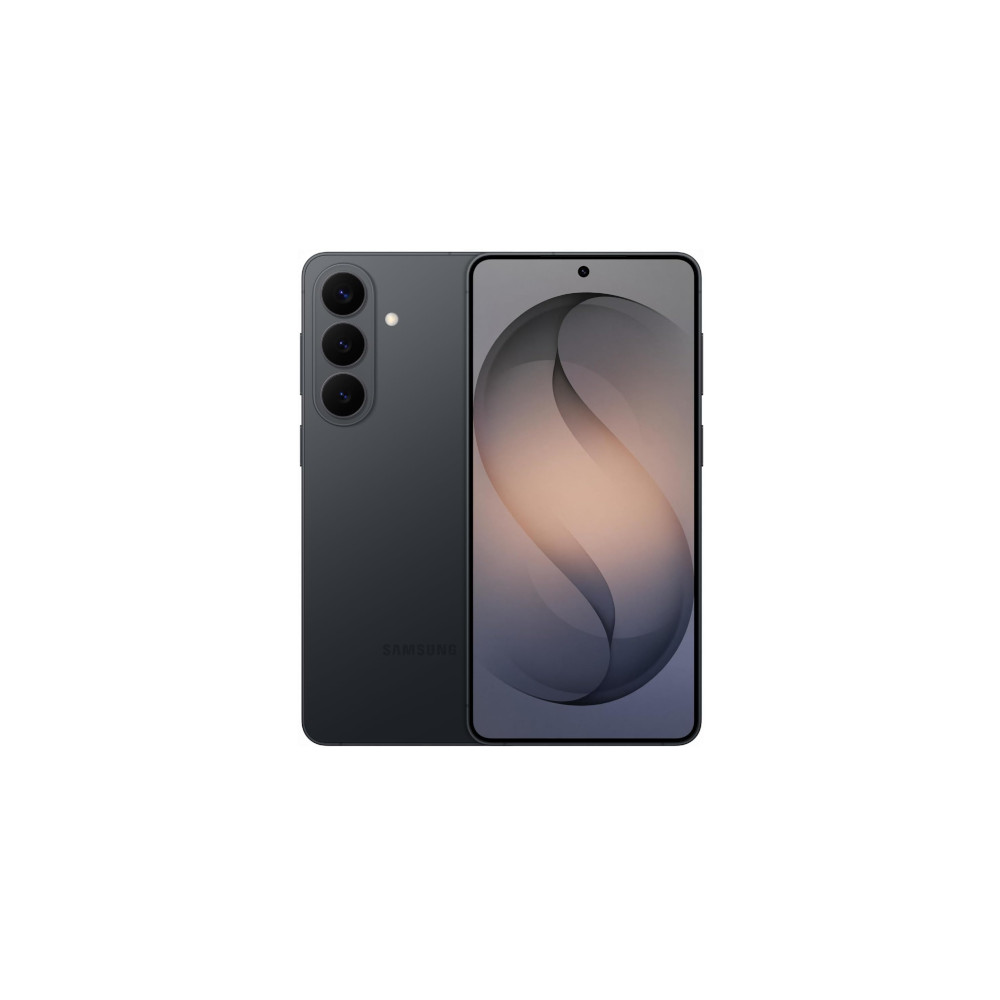
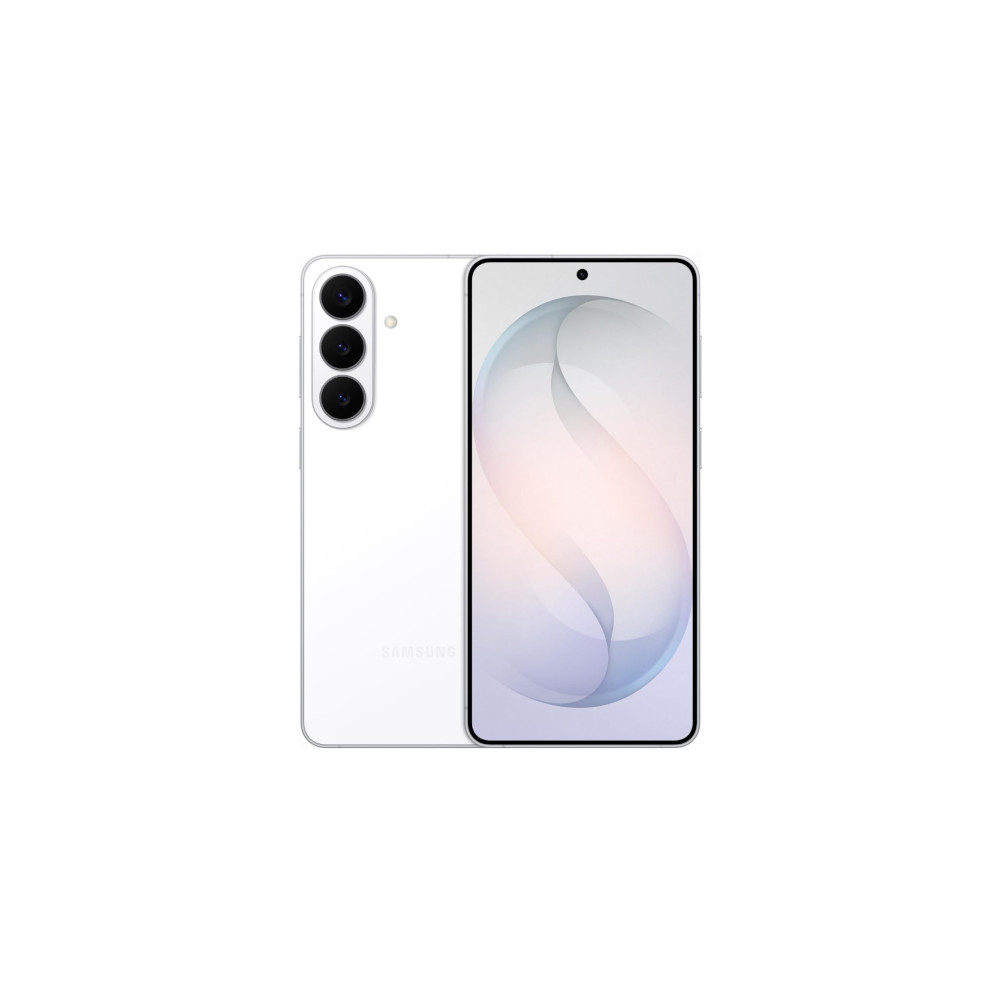
New Galaxy AI features
Faster Wireless charging
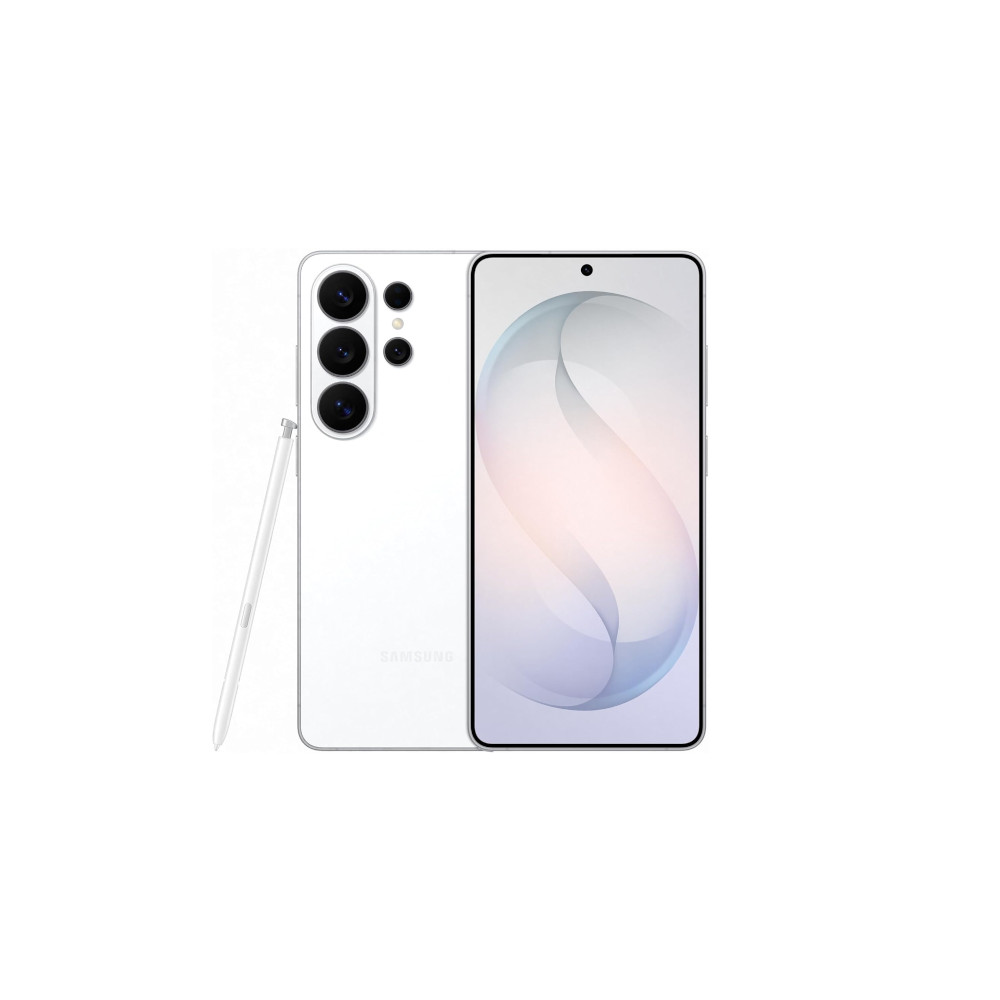
Snapdragon 8 Elite Gen 5 for Galaxy
Power AI features
Thank you for being part of our community. Read our Comment Policy before posting.