Affiliate links on Android Authority may earn us a commission. Learn more.
Gemini's got a new shortcut to get to tools faster
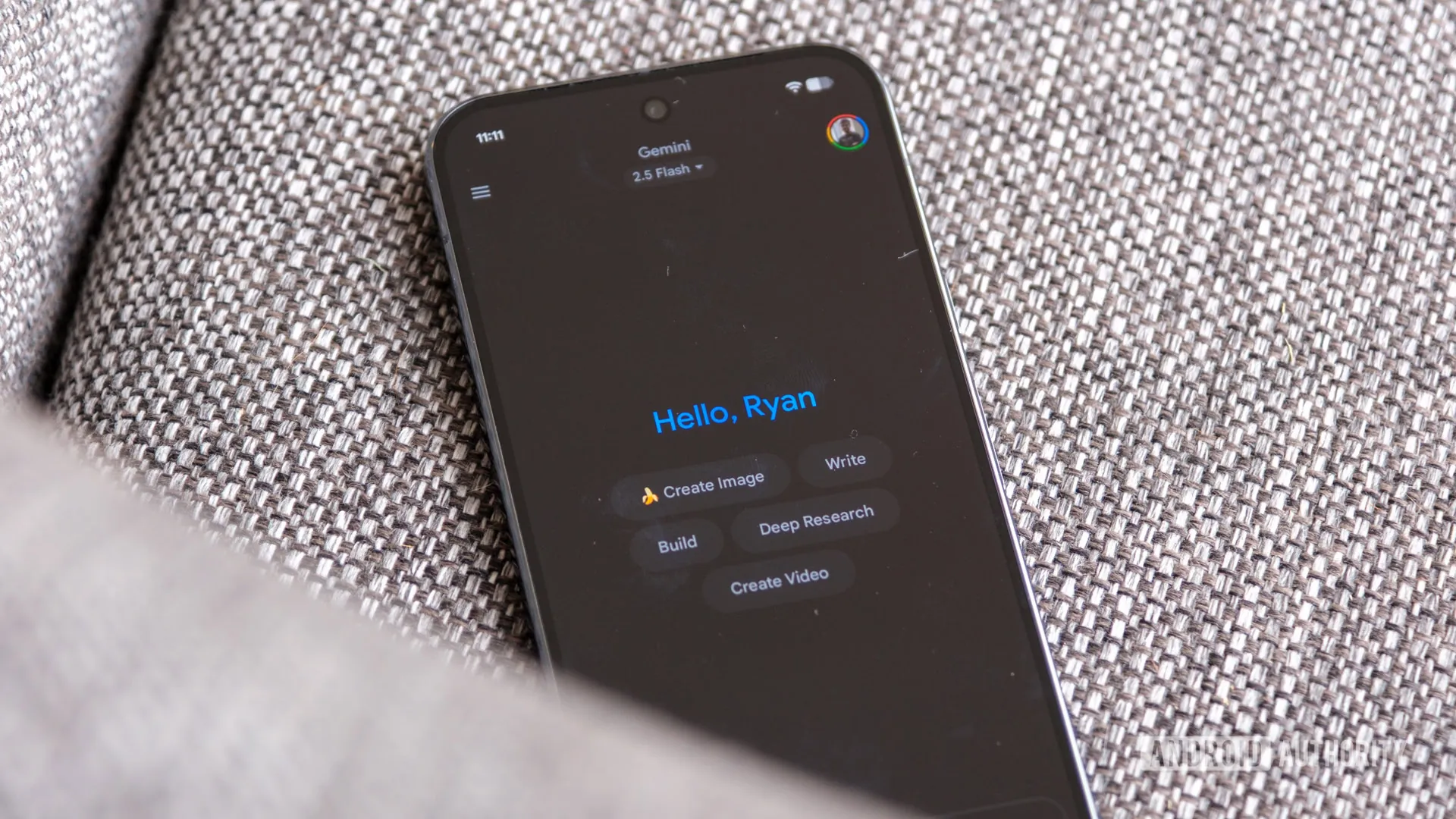
- The Gemini overlay has a new button that opens shortcuts to various tools.
- We previously saw this menu in development last year.
- The new button is available on several of our own devices and appears to be rolling out widely.
We saw Google working on a new tools interface for Gemini on Android in October. The interface, accessible by a new button that shows up on the left side of the Gemini overlay text box, brings up shortcuts to options like image and video generation and Gemini’s deep research function. Today, those changes have been spotted rolling out broadly.
We’re seeing the new button on our own devices here at Android Authority; I’ve got it on my own Pixel 9 Pro. The new tools button appears just to the right of the attachments button.
Don’t want to miss the best from Android Authority?
- Set us as a favorite source in Google Discover to never miss our latest exclusive reports, expert analysis, and much more.
- You can also set us as a preferred source in Google Search by clicking the button below.


The tools button opens up a menu with shortcuts to a number of features: Create image; Create video; Create music; Canvas; Deep research; and Guided learning. If you’re enrolled in Search Labs, you’ll also see access to experimental features. On my own device, I’ve got a toggle to turn Gemini’s experimental Personal Intelligence feature.
The button itself isn’t super clearly labeled; the icon to open the tools menu two stylized sliders, which reads to me as visual shorthand for settings more than tools. Still, easy access to these tools from the Gemini overlay does make accessing various functionality quicker — prior to this change, accessing Gemini’s deep research functionality (for example) required navigating away from whatever else you were doing to open the Gemini app.
The new tools button is available now in the Gemini overlay that appears when you press and hold your phone’s power button or swipe in from the corner of the display. If you’re not seeing it on your own devices, you should soon.
Thank you for being part of our community. Read our Comment Policy before posting.