Affiliate links on Android Authority may earn us a commission. Learn more.
This Galaxy S26 Ultra feature turned my terrible drawings into wallpapers, and I can't stop using it

I’ve been using the Galaxy S26 Ultra for a few days now, and like every new flagship phone in 2026, it’s packed to the rafters with AI features. From smarter photography tools to productivity features that promise to make everyday tasks easier, the Galaxy S26 Ultra has more AI stuffed into it than I would likely ever use, but there’s one feature that has stood out to me as the most unexpectedly fun thing to do on the phone.
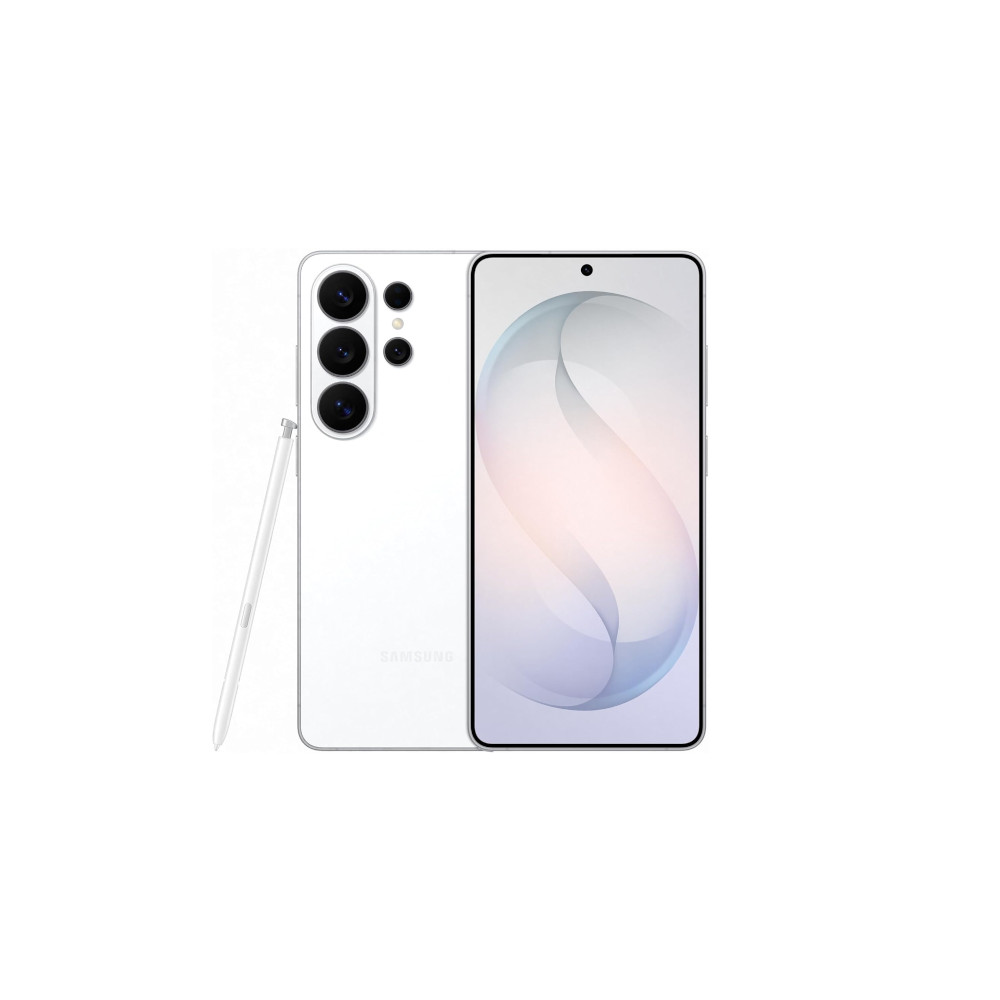
Creative Studio is Samsung’s latest generative drawing tool, and while it might sound like just another image generator, it’s actually much more interactive. In fact, it has quickly become one of my favorite features on the S26 Ultra, largely because the S Pen makes it feel like you’re genuinely creating something instead of just typing prompts and waiting for AI to do the work.
A generative art tool that actually invites you to draw

Creative Studio is somewhat similar to Google’s Pixel Studio, but Samsung’s implementation goes much further. Instead of just creating stickers or simple AI images, it lets you design everything from greeting cards and invitations to profile cards and wallpapers.
I’m not exactly a talented artist, and my sketches are usually rough at best, but Creative Studio can take even the most basic drawing and transform it into something that looks fun and polished.
One of the first things I tried was drawing simple abstract shapes and sketches to see what the AI would do with them. To my surprise, even my worst sketches turned into quirky wallpapers I actually wanted to use on my phone.
The tool offers a variety of styles you can apply to your drawings, including:
- Childhood sketch
- Oil Painting
- Marker drawing
- Pop art
- Soft illustration
- Watercolor
- 3D cartoon
- Sketch
- Webtoon
- Art Nouveau
No matter how basic the original drawing is, Creative Studio can reinterpret it in these styles and produce something you can use.
In one case, I sketched a really immature drawing of a girl holding balloons and selected the watercolor style because I wanted to see how far the AI could reform my worst scribbles. I wanted Creative Studio to turn my drawing into something dreamy and fairytale-like for a wallpaper, and it did exactly that. The AI clearly understood the intent of my horrible drawing and turned it into a beautiful, stylized image while keeping the original idea intact.
The feature became even more entertaining when I handed the S Pen to my daughter.
She drew a few simple doodles, the kind any kid might sketch in seconds, and Creative Studio brought them to life to her utter joy. The AI preserved the elements and spirit of her drawings, which is something I really appreciated.
That moment really made me appreciate what Samsung is trying to do here. It’s making AI creativity feel playful rather than intimidating or completely unreal.
If someone with my limited sketching skills can enjoy this much, I can only imagine what people who are actually good at drawing might create.
AI generation, but with more control
Creative Studio isn’t just about drawing and applying styles. You can also refine your results with text prompts, tweak the generated images, or swipe to generate new variations of the same image.
If you already have an image you like, say a downloaded wallpaper or a photo, you can also apply the same artistic styles to it and experiment with different looks.
Samsung even includes sample designs you can use as starting points for wallpapers, stickers, greeting cards, or profile cards. These can then be customized further with prompts or edits. You can also edit the prompt that generated an image later on, which is handy if you want to refine a design you liked but didn’t quite love.
Another thoughtful touch is project organization. When you open Creative Studio, all your creations are saved and neatly categorized, making it very easy to revisit and modify previous designs.
A few limitations worth noting
While Creative Studio is impressive, it’s not without some imperfections. For one, text prompts are limited to just over 100 characters, which can feel restrictive if you want to give detailed instructions for the image you want to create. Then again, I feel that if longer text prompts were allowed, the time it takes to generate an image would also increase. Right now, it takes just a few seconds for an image to be generated, and that does add to the fun of using the tool. It’s not laggy, and that’s great.
Every generated image includes an AI watermark.
Unfortunately, every generated image, like the ones you see in this article, includes an AI watermark. While I understand Samsung’s intent to mark AI-generated content clearly, this can be annoying if you plan to use the image as wallpaper. Thankfully, the watermark is placed at the very bottom and can be cropped out in the Gallery. However, that would involve a few extra steps compared to simply setting the generated image as a wallpaper in Creative Studio.
I also wish Samsung included a “natural” or no-style option. Right now, all outputs apply some form of stylization, which is great for artistic images but less ideal if you want something that looks more realistic.
Like any generative AI system, results can be inconsistent.
And like any generative AI system, results can be inconsistent. Some styles, particularly 3D cartoon or oil painting, can distort facial features when applied to photos of people, especially if the face isn’t a close-up. Other styles, like sketch or soft illustration, tend to stay much closer to the original image.
Why it works so well on the Galaxy S26 Ultra

The real magic of Creative Studio comes from using it with the S Pen.
Drawing with a stylus makes the whole experience feel far more natural and playful than tapping out prompts on a keyboard. Samsung’s Ultra phones have always stood out because of the S Pen, and Creative Studio feels like a feature designed specifically to take advantage of it.
Creative Studio feels like a feature designed specifically for the S Pen.
More than anything, I enjoyed the fact that I could add my own personal touch to the AI-generated results by actually drawing something first. It’s a small but important difference from purely prompt-based AI tools.
Since getting the Galaxy S26 Ultra, I’ve played around with many of its new AI features, but this simple generative drawing tool is the one I keep coming back to.
Thank you for being part of our community. Read our Comment Policy before posting.