Affiliate links on Android Authority may earn us a commission. Learn more.
I’ve had a bad 48 hours using Googlebooks, but there’s one saving grace
Oct 12, 2026 — 5:00 AM ET
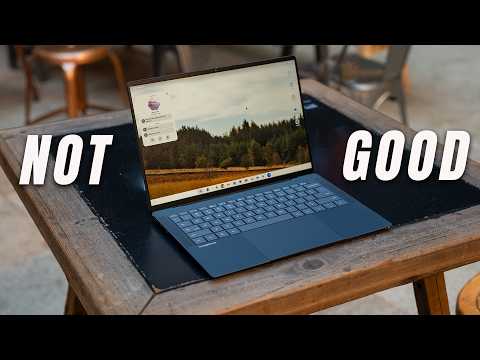


I expected growing pains when I fully switched to the Acer Googlebook 14 as my only work machine. Even still, nothing could’ve prepared me for the state of Googlebook OS on the laptop that showed up at my door last week. Between the downgrades compared to ChromeOS, the disappointing Chrome browser, and the “Better Together” feature bugs, I’ve spent as much time troubleshooting this Googlebook as I’ve spent using it to get work done.
Amid my struggles, I found something that Googlebook OS genuinely does better than ChromeOS, macOS, and Windows: it’s the most touch-friendly desktop operating system I’ve ever used, and it’s no coincidence that every Googlebook has a touchscreen.
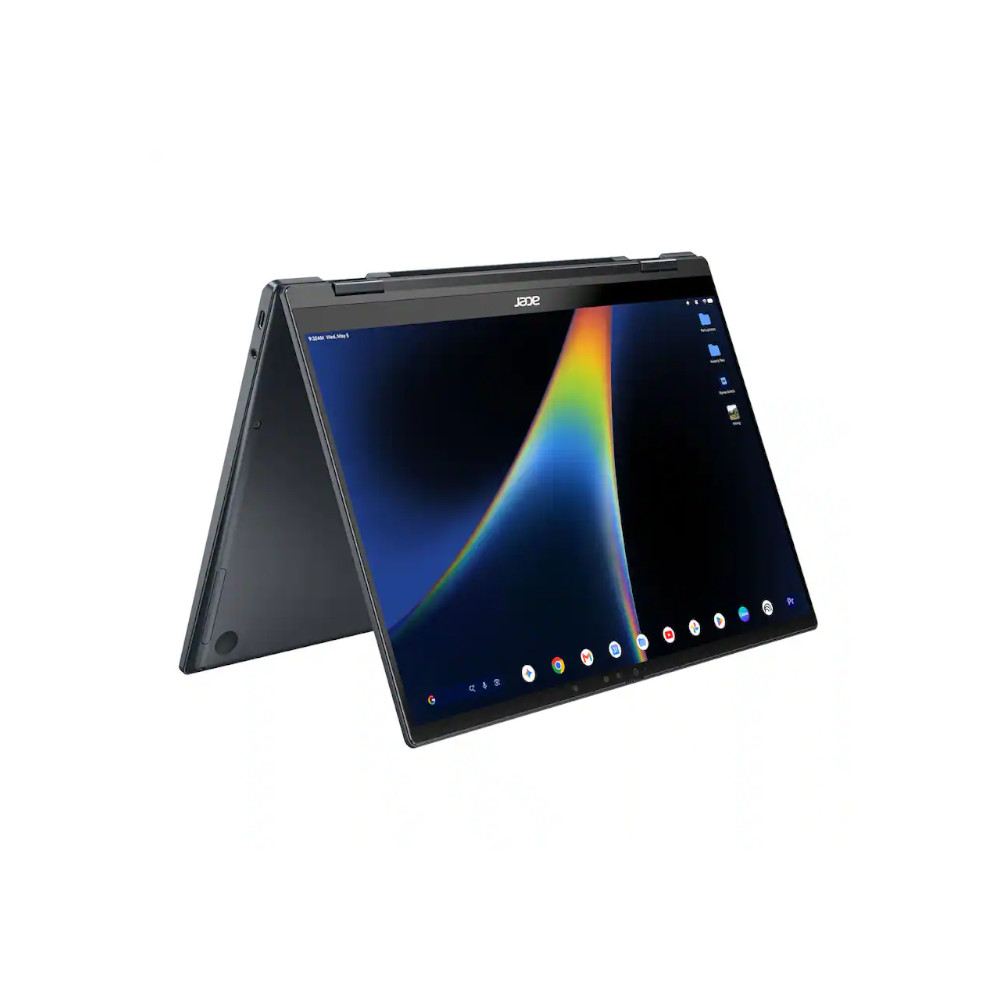
Only one model, the Acer Googlebook I’ve been using, is a convertible. I’ve tested numerous convertibles over the years, and this is the first one that could actually pull double duty as a tablet for me.
Would you use laptop touchscreens on Googlebook OS?
Googlebook OS is a joy to control with touch

While it’s officially called Googlebook OS, it’s clear that the operating system powering Googlebooks is heavily derived from Android’s desktop mode. In fact, if you navigate to the “About” page in the Settings app for any Googlebook, you’ll see both the Googlebook OS version and the underlying Android version listed. The operating system’s Android foundation results in large, easy-to-press app icons and UI elements. If you’ve ever tried to use macOS or Windows with a touchscreen, you know why these characteristics matter.
I find myself reaching for the touchscreen on my Googlebook more than any touchscreen Windows laptop I’ve used. Each app window features a large title bar separate from its toolbar, if applicable. This title bar houses the window’s name and window management buttons, and frankly, it takes up a lot of space. But that’s exactly what makes Googlebook OS windows easy to touch, hold, and drag with your fingers.
Instead of using the touchpad or keyboard shortcuts, I’ll drag a window to resize it or snap it into a split-screen view. If I need to access the control panel, I’ll tap it with my fingers. The volume and brightness sliders, Wi-Fi and Bluetooth menus, and camera and microphone access buttons are all easier to control with touch than a cursor.

There still are UI elements that take advantage of a cursor’s precision. See that “Now Playing” pill for Apple Music in the Googlebook’s status bar in the photo above? If I move my cursor above the circular Apple Music logo, it transforms into a play/pause button. I can click it to start or stop playback without opening the full media overlay, and this is impossible to do with a fingertip.
This is a basic example of Googlebook OS at its best — it's intuitive regardless of whether you use touch, keyboard, or mouse input.
Googlebook OS has an app drawer and notification shade that closely resemble their Android equivalents, and these are similarly easy to access with touch. I can tap the “G” icon in the taskbar to open my Googlebook app drawer, scroll through my apps, and click one to open it. If I’d prefer to keep my hands on the keyboard and touchpad, pressing the “G” super key also opens the app drawer and places my cursor in the search bar. All I need to do is type the app name and hit “return” to launch it.
This is a basic example of Googlebook OS at its best — it’s intuitive regardless of whether you use touch, keyboard, or mouse input.
Unfortunately, there’s a flip side to this. Sometimes, I’m forced to use the touchscreen because the keyboard and touchpad aren’t well supported. For example, Luminar is a photo editor on the Play Store that is “made for desktop,” which is Google’s label for apps that are most compatible with Googlebook OS. But Luminar doesn’t support multi-touch trackpad gestures for zooming in or out, so I need to use keyboard shortcuts or the touchscreen.
This is an equally basic example of where Googlebook OS needs to improve. Ideally, I should be able to use any of these three input methods on apps that are “made for desktop.”
With Googlebook OS, convertibles finally make sense

Everything I’ve mentioned so far applies to each of the five Googlebook models, since they all sport touchscreens. The Acer Googlebook 14 is unique because it’s a convertible and has a 360-degree hinge. This allows you to flip the screen completely around and use it like a tablet. While convertible laptops are nothing new, ChromeOS and Windows lack the software required to make them enjoyable to use in tablet mode.
Googlebook OS is different. Flip a convertible Googlebook, and the desktop layout shifts to operate more akin to an Android tablet. The taskbar transforms, ditching the app drawer shortcut and adding a Google Search bar instead. All the basic Android navigation gestures work, revealing the app drawer, app switcher, control panel, and notification shade. Some features, like the app switcher, behave completely differently in desktop mode.
The lack of desktop-caliber apps is a limitation in desktop mode, but it becomes a feature in tablet mode. Apps designed for Android are a breeze to use on a Googlebook convertible, whereas apps that run as Trusted Web Activities (TWAs) or Progressive Web Apps (PWAs) are trickier to control with your fingers.

I found a random Lenovo pen and started using it to annotate and draw in Notability on the Googlebook, and the Acer convertible handled it almost as well as my iPad Pro. Apps like Adobe Acrobat or games like Stardew Valley run great on the Googlebook with it flipped around as a tablet. In just a few days, I’ve already seen firsthand how Googlebook convertibles are better suited to leverage the Play Store library than Googlebooks with traditional laptop form factors.
Make no mistake, convertible laptops are still weird. They’re strange to hold in tablet mode, because you feel the keyboard and touchpad on the back. In tent mode, the speakers usually fire away from you. The hardware limitations still apply, but when using a Googlebook convertible in tablet mode, software isn’t the bottleneck.
Acer’s Googlebook shines with games and videos

With those hardware oddities in mind, I still wouldn’t want to use a convertible laptop as a couch tablet. But flat on a desk or in tent mode on a table? The drawbacks fade away, and the touch-first Googlebook OS characteristics let me use the Acer convertible in ways that would’ve been frustrating had it run ChromeOS or Windows instead.
I don’t use tablets much anymore, aside from content consumption and light gaming, and the Googlebook convertible is great for those use cases. I wish I could opt for the Android version of the YouTube app in tablet mode, but the TWA is still fine. With virtually every major streaming service available on Googlebook OS via the Play Store, the Acer Googlebook proved to be a beast of a media player. Cloud gaming was surprisingly fun using the 12-month Nvidia GeForce Now Fast Pass code that comes free with Googlebook purchases.
Convertibles are still niche, somewhat gimmicky devices — but I’d rather use one running Googlebook OS than ChromeOS or Windows, that’s for sure.

However, the unfinished state of Googlebook OS applies to every part of the operating system — even the good parts. At launch, the Googlebook OS home screen can’t rotate into portrait orientation while the Acer Googlebook is in tablet mode. You need to maximize the app you want to use in order for it to auto-rotate. These kinds of oversights make Googlebook OS feel more like a developer beta than a consumer release.
Google clearly still has its work cut out for it, but the touch-friendly interface stands out compared to ChromeOS and Windows, and it helps you make the most of touchscreen and convertible laptops.
Thank you for being part of our community. Read our Comment Policy before posting.