Affiliate links on Android Authority may earn us a commission. Learn more.
How to install the Android SDK
Sep 1, 2019 — 3:00 AM ET
The Android Software Development Kit (SDK) is a crucial part of Android development for beginners to come to grips with. It’s a selection of files bundled together that you will need to begin creating Android apps. It consists of tools like the virtual device manager (emulator) and ADB bridge, as well as a library of additional code for making Java programs work with the Android platform. For more on what you get with the Android SDK, check out the Android SDK tutorial for beginners.
Also read: Java tutorial for beginners


How to install the Android SDK
While this might all sound quite complicated, there is good news: you don’t need to worry about the Android SDK much at all anymore. For the most part it will be handled in the background for you.
The SDK is now included with Android Studio. Android development for beginners is getting easier and easier and this relatively recent change means you now only need to go through a single installation to get your development environment up and running. There’s even an open Java Development Kit (JDK) included, so you no longer need to separately install the latest version separately.

Installing Android Studio is just as simple and we have a guide to help you out here. Again, it is just a matter of downloading the installer and following the steps as prompted. At one point you’ll be given the option to choose a path for the SDK to be installed; make a note of this as it may come in handy later.
Related: Android Game SDK: What it is and how to use it in your apps
Setting up Android development for beginners has become a relatively streamlined process. It involves a few rather large files — so be prepared for that and some lengthy download times.
Updating the SDK
When you install Android Studio, you’ll automatically get the latest version of the Android SDK. The SDK is constantly being updated with new features and security updates. It’s your job to ensure you keep pace with these changes, so you can support the latest versions.

To help you do this, Android Studio provides something called an SDK manager. This is a program specifically for downloading parts of your SDK. Open the manager by heading to Tools > SDK Manager. You’ll be greeted with a list of files under the tabs SDK Platforms and SDK Tools.
The SDK platforms are the Android platforms you can develop for. You need at least one to create a working app. If you choose the latest version, you’ll be able to support all the latest features of Android.
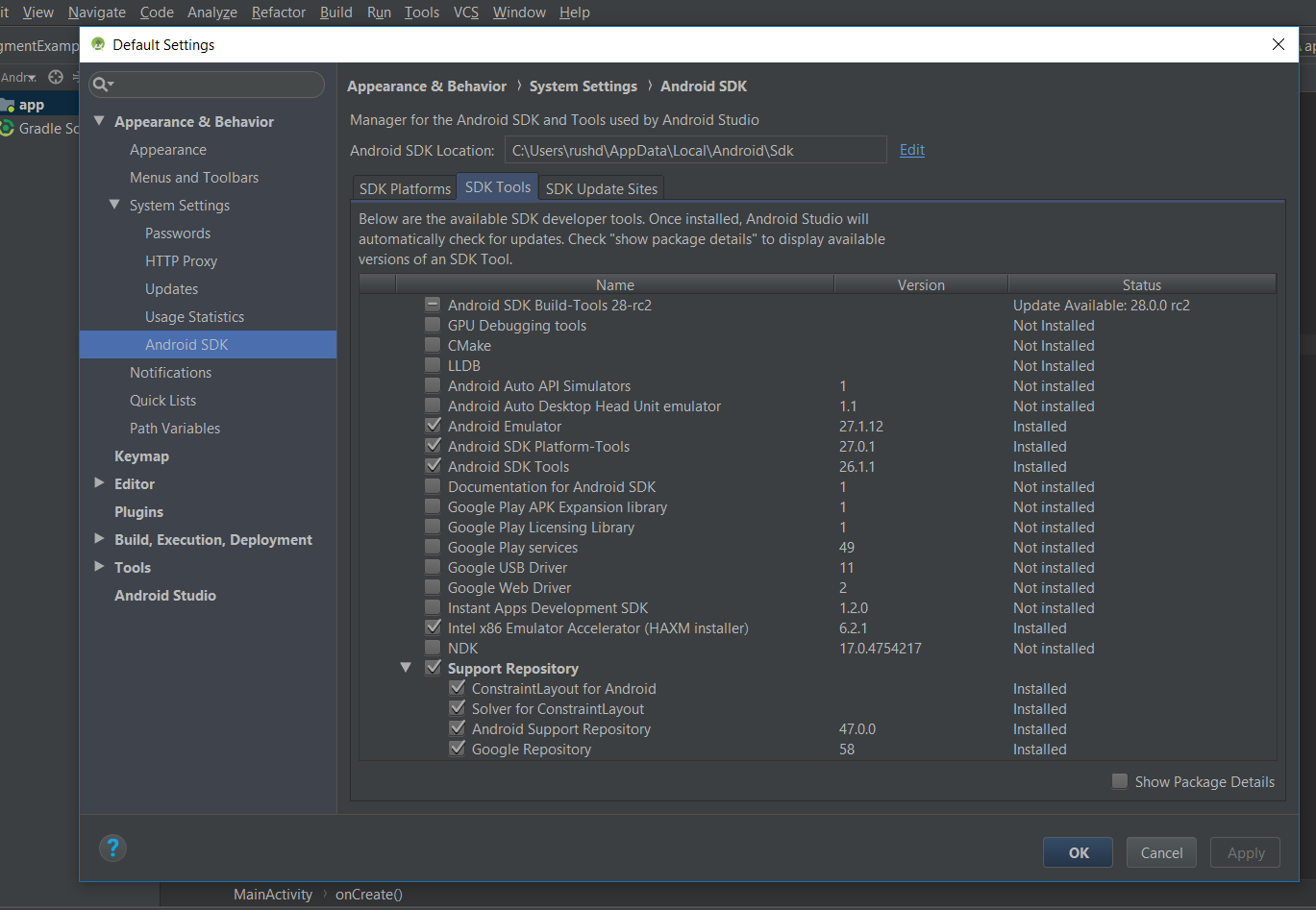
New versions of Android should be backward compatible, so unless you are a pro developer looking to make use of a cutting edge feature, you’re probably fine to ignore this tab once you’ve gone through the initial installation. It will make Android development easier for beginners.
Under the SDK Tools tab, you’ll find a list of the other elements that make up the SDK. You can install these individually. Those that have a blue box with a dash through are ready for updating. The most important things here are the Android SDK Build-Tools, the Android SDK Platform-Tools, and the Android SDK Tools. You may also want the Android Emulator and system images if you plan on running and testing your apps on your PC.
In the meantime you can mostly forget all about the SDK manager if you're a beginner
Android Studio will let you know if any updates are mandatory, so you can mostly forget all about the SDK manager (likewise, Android Studio itself will prompt you when it is ready for an update). Now you know how to start supporting the most recent versions of Android, once you graduate from beginner to status that is.
Using the Android SDK on its own
You may be wondering whether you can use the Android SDK on its own, or whether you would ever need to.
The one use-case where this is convenient is if you ever find yourself needing to use a different Integrated Development Environment (IDE), such as Unity (instead of Android Studio). Unity is a game engine and “game maker” that can be used to create Android games. You’ll use a completely different interface and even a different programming language (C#), but you’ll still need a copy of the Android SDK for that program to be compiled into an APK ready to run on Android. The same goes for Android development using other tools like Xamarin.

If you want to make it as easy as possible to start Android development as a beginner, I recommend you still install Android Studio along with the SDK as before (you’ll still need the JDK too). When you go through this process, just make a note of the path where the SDK is installed. Yyou will need this to tell other IDEs where the SDK is located on your computer. You’ll find there’s the option to enter the path for the SDK somewhere in the settings (Google is your friend if you’re not sure where that is), now just copy and paste! Installing the Android SDK this way is easier for beginners, and it also means you’ll have Android Studio on hand should you ever want to try traditional Android development.
Also read: Getting to know Android Studio and the files that make up your app
Note that depending on the IDE, you might need to install the Java Development Kit (JDK) separately and provide a path for this too. To install the JDK, just head over to this page at Oracle.com and download the latest version. Once that’s done, click on the .exe file and then follow the steps by clicking Next.
Some IDEs will give you the option to download Android Studio automatically when you go through the set-up process, which is a feature that is new for Unity.

Installing all of these extra files will take up a lot of space on your computer. If you’re really keen to keep things to a minimum, you can always download the “command line tools only” option. You’ll find this by scrolling down the page where you found Android Studio and downloading the zip file for your specific operating system. You’ll find instructions on how to use this here and you can grab the command-line tools from here. Theoretically, this could also be useful if you ever want to use a specific tool included in the SDK, such as the ADB bridge.
That’s all there is to downloading and installing the Android SDK! This is one of the first and most important steps when it comes to Android development for beginners, so well done!
Thank you for being part of our community. Read our Comment Policy before posting.