Affiliate links on Android Authority may earn us a commission. Learn more.
Here's how I keep my NAS safe from prying eyes

Network Attached Storage devices are all the rage these days, but I’ve been using them for well over a decade at this point. I’ve got multiple boxes sitting on a shelf in my study, holding backups, family photos, my ever-expanding library of media, while also acting as my home server. It’s easy to assume that just because the box is sitting in my home or desk, it’s perfectly safe. I used to think that as long as there’s no unauthorised access to my home internet network, I shouldn’t have anything to worry about. Turns out, I was wrong.
Learning how to harden your NAS can be annoying, but it pays off in peace of mind.
You see, a modern NAS is not just a hard drive with a network cable; it is a fully functional server. Once you start enabling features that make a NAS useful, like remote streaming or file sharing, you are effectively opening it up to wide open internet and that means its time for you to start acting as your own IT department. The moment remote access enters the picture, your local-first device becomes a prime target for anyone with an internet connection and bad intentions. Here is how I learned to harden my NAS and why I treat it like the most vulnerable device in my house.
Which NAS security steps do you follow?
Remote access changes everything

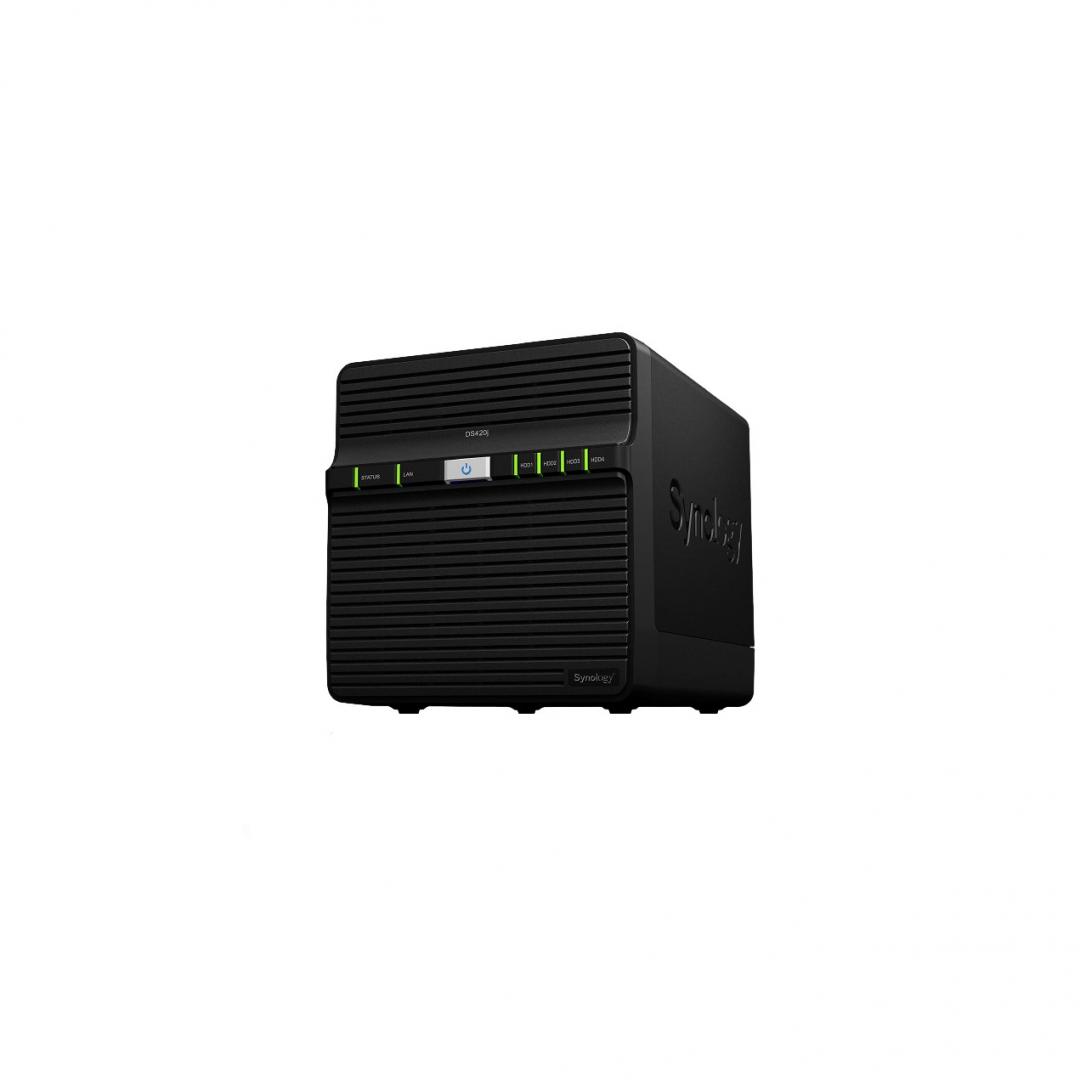
One of the most common misconceptions when it comes to running any self-hosting hardware or service is that we are too insignificant to be hacked. The reality is that attacks are rarely personal. Bot swarms scour the internet looking for open ports and known vulnerabilities, and they do not care if the target is a Fortune 500 company or a Synology DiskStation sitting in a bedroom. So, you are just as likely to be a target for a ransomware scam as the business down the road.
The moment remote access enters the picture, your local-first device becomes a target.
The problem usually starts with convenience. I want to access my Plex library when I am traveling or on a business trip. I also want to back up photos from my phone while I am on vacation. I also want to be able to share files straight from my NAS instead of reuploading them to cloud storage.
NAS vendors know this, so they pack their software with quick access features that punch holes in your network firewall to make these things happen effortlessly. These tools are not unsafe by default, but the default assumptions they make often are. The goal is to prioritize easy connectivity over strict security. Once I realized that enabling these features essentially puts little more than an easily broken latch on the front door of my NAS, I decided to tear down my setup and rebuild it with security as the primary goal.
Hardening the basics before anything else

Before I even think about how to access my data from the outside, the first step is to lock down internal access. It sounds obvious, but the vast majority of successful breaches happen because users leave the default settings intact. Case in point, the default admin account. On almost every NAS system, the default username is “admin.” Attackers know this, and guessing the username takes away half the effort of brute-forcing into your system. By disabling this account entirely and creating a new superuser with a unique name, you can immediately neutralize any script trying to brute-force the “admin” user. Keep in mind, some systems, like Synology, won’t let you delete an admin account entirely. An easy workaround is to make a separate superuser account, switch over into that account, and reduce the permissions for the admin account.
Locking down your default admin account and enabling 2-Factor authentication goes a long way.
Next, my top recommendation is to enable 2-Factor Authentication for every single user account, not just the administrators. It does not matter how strong a password is if it gets leaked in a database breach somewhere else. A simple, free, authenticator app like Authy does the trick, though you can go down the hardware authentication route if you so want to.
Finally, I recommend changing the default ports. Most NAS units operate their web interface on specific ports. While changing these ports technically won’t stop a sophisticated targeted attack, it does help reduce your attack surface from automated bots that are blindly pinging the default numbers. It is a low-effort change that makes a noticeable difference as far as incoming pings go.
Accessing your NAS remotely without exposing it

The safest port when it comes to a NAS is a closed port. The next safest option is for you to have more control over the ports and how you access your NAS remotely. For the longest time, I struggled with the idea of having to manage my server remotely since it meant having to expose the login page to the internet. That is a terrifying prospect because one zero-day vulnerability in the login software could give an attacker full control. Especially, since such vulnerabilities aren’t unheard of.
I never expose the management interface to the open internet.
My solution now is to never expose the management interface to the open internet. Instead, I use a mesh VPN like Tailscale or Wireguard. I run the VPN service on the NAS, which isn’t too complicated. In fact, most NAS boxes come with an app store these days, and you’ll invariably find precompiled binaries for Tailscale or Wireguard in the store. If you prefer an in-built option, Synology and most other NAS boxes include reverse proxy options. However, I tend to prefer a third-party validated solution.
When I am away from home and need to tweak a setting, check a file, or download, I just toggle the VPN on my phone or laptop. As far as the NAS is concerned, it behaves as if my remote device is sitting right there on the local network. I can access the web interface using its local IP address. The beauty of this method is its invisibility. To an outsider scanning my home IP address, there are no open ports. There is no login page to attack either.
When something has to be public, expose it the right way

While the VPN approach works perfectly for me, it doesn’t work for services I need to share with others. I can’t ask my friends to install a VPN client just to watch a movie on my Plex server, download a file from my Nextcloud instance, or access a recipe on my self-hosted recipe server.
When a service absolutely must be public, I use a reverse proxy. Instead of forwarding a port directly to the application on my NAS, I forward relevant ports to a reverse proxy server that sits in front of my services. The reverse proxy acts as a traffic cop, inspecting requests before sending them to the NAS. Additionally, I use freely available Let’s Encrypt SSL certificates for everything, ensuring that traffic is encrypted from the client to my server. While I’m at it, I’ve started taking it a step further with geo-blocking.
Since I live in India and I know my friends and family are local, I see no reason why my server should accept traffic from halfway across the world. I use firewall rules at the proxy level to block connection attempts from a selective list of countries that have no real reason to be pinging my server. It’s an aggressive move that can cut down on the vast majority of malicious traffic.
Accounts and user permissions

Building on my first point of segregating admin accounts, one of the biggest mistakes I made early on was using my admin account for everything. It was just easier. I used the same login to configure the RAID array as I did to browse photos on my TV. This breaks the principle of least privilege. If my daily driver laptop or password manager gets compromised and I have an active session with full administrative rights, the attacker has full access to my NAS.
Limiting user access to essentials is the best possible way to ensure a secure infrastructure.
So, in addition to more or less disabling the default admin account, I also make sure that I don’t use my self-created superadmin account for everyday tasks. Instead, I have a standard user account with reduced permissions for daily use. This account can read files and write to specific folders like uploads, but it cannot delete backups, uninstall apps, or change system settings.
I also apply this logic to devices. I do not trust every device equally. My main desktop is trusted, but if I want to log in via SMB to my Android TV, I opt for the restricted account. This ensures that a compromised smart TV cannot easily become a launchpad for an attack on the server. Perhaps I’m overthinking it, but when you have decades of documents, photos, and memories stored on your server, you can never be too sure.
Protecting the data itself

Step 1 of securing your NAS is to keep people out. Step 2 is damage control if they get in. If someone were to physically steal my NAS, or if a vulnerability allowed them to bypass the login, the last line of defense is encryption. I encrypt my shared folders at rest using my NAS’s built-in file encryption software. This means that if the drives are pulled out of the unit, the data is unreadable without the encryption key. It does add a slight overhead to performance, but modern processors handle it well enough that I don’t notice the difference.
A 3-2-1 backup rule is your insurance policy against disaster.
However, encryption protects against theft, not destruction. Ransomware is a legitimate threat to home users. If malware infects a PC that has a network drive mapped, it can encrypt the files on the NAS.
This is why I swear by the 3-2-1 backup rule. I keep three copies of my data. Two are on different media types — the NAS and a secondary NAS — and one is on a large external hard drive. Additionally, I’ve also configured an off-site backup via a cloud storage bucket that is immutable for a set period. This means that even if I get hacked and the attacker tries to delete my cloud backups, the provider will not allow the files to be modified or removed until a timer expires. That said, only the most critical documents and files get beamed over to the cloud bucket owing to the associated costs.
Reducing attack surface by removing things

A modern NAS isn’t just a storage device, it’s also a home server that runs a wide range of apps, services, and many of these are switched on by default for the convenience of users new to NAS boxes. Once I started digging in, I realised that my NAS was running a lot that I didn’t actually need. Today, I run most services using a containerisation platform like Docker. However, even in that case, I had Docker containers for services I tested once and forgot about. I had protocols like FTP and SSH enabled just in case I needed.
It’s worth repeating the fact that every running service is a potential entry point for bad actors. I now audit the services running on my device every month. If I am not using SSH today, I turn it off. If I am not actively using a Docker container, I stop it and remove it. It’s just good hygiene for your system.
I have also disabled UPnP on my router. UPnP allows devices inside the network to automatically open ports to the outside world. It’s a convenient addition for things like gaming consoles, but a nightmare for security. I prefer to know exactly which ports are open because I opened them manually.
While at it, I also use the NAS’s built-in firewall to create an allow-list. I explicitly allow access from my PC, my phone, and my media player, and everything else is blocked. If a rogue device on my network tries to ping the server, the NAS simply ignores it. Finally, I have configured my NAS to send me push notifications for critical events. I want to know immediately if a user logs in from a new IP address, or if my hard drives are malfunctioning. Having that visibility goes a long way since you might not even log into the dashboard for weeks on end.
The uncomfortable truth about NAS security

All that sounds like a lot of work, and it is. But the fact of the matter is that even after all those steps, you aren’t fully secure. There is no configuration, no software, and no firewall that can guarantee 100% safety. A determined attacker with enough resources can likely find a way in, and a zero-day vulnerability in the NAS operating system could render all your precautions useless. However, you can certainly make it hard for someone to get into your system and network.
Security isn’t about being bulletproof. It’s about being harder to crack than the next guy.
If you make it hard enough, most bots will just move on to the next target. Similarly, segmenting user accounts and settings means that if one aspect of your digital life gets compromised, it doesn’t take everything else with it. And finally, having a solid backup strategy means that in the worst-case scenario, you should be able to recover as much of your data as possible. At the end of the day, security is about reducing risks, removing variables, and understanding that your data is worth protecting, even though the steps to get to that might be annoying. It’s taken me years of learning to get to this point, but it’s something that I’d urge everyone to do if you own a NAS or are looking into buying one.
Don’t want to miss the best from Android Authority?
- Set us as a favorite source in Google Discover to never miss our latest exclusive reports, expert analysis, and much more.
- You can also set us as a preferred source in Google Search by clicking the button below.


Thank you for being part of our community. Read our Comment Policy before posting.