Affiliate links on Android Authority may earn us a commission. Learn more.
Google is hiding a helpful Camera Looks shortcut on the Pixel 11 — how to enable it
Sep 13, 2026 — 6:00 AM ET



The Google Pixel 11 may not look dramatically different from the past couple of generations, but there are some meaningful upgrades across the board. As always, the company has made improvements to the camera hardware. The base Pixel 11 gets an upgraded main camera sensor that captures 56% more light, while the Pro models feature a new 48MP telephoto camera that lets in 30% more light.
Of course, those aren’t the only camera upgrades this year. Google has added plenty of new software features as well, including my new favorite, Magic Capture, alongside an iPhone Photographic Styles-like feature called Camera Looks.
The problem with Camera Looks, though, is that Google hasn’t exactly made it easy to access by default. Once you’ve set up your Pixel 11, changing between different Looks takes a little more digging than it should. Thankfully, there’s a pretty easy way to bring the Camera Looks shortcut back to the Pixel 11’s camera interface. Here’s how to do it.
Do you use Camera Looks on your Pixel 11?
The problem with accessing Camera Looks on the Pixel 11

One of the best new features on the Google Pixel 11 series is easily Camera Looks. Unlike before, where Google largely decided how your photos should be processed, you now get some control over how the final image looks and what kind of style you want from your photos.
Unlike regular software filters that you apply after taking a photo, Camera Looks changes the processing of the image before you even press the shutter button. There are four options under the Default Look: Original, Natural, Shadows, and Vanilla. You can also choose more intense, movie-like styles, including Editorial, Velvet, Classic, Digi, Minimal, and others.
It’s a fantastic addition because not everyone wants their photos processed the same way. If you want more emphasis on shadows, you can choose Shadows. If you prefer something warmer, you can go with Vanilla. This is really the first time Google has given Pixel users this much control over how their photos are processed before they’re captured.

The problem, however, is accessing Camera Looks after you’ve initially set up your Pixel. When you first open the Camera app on the Pixel 11, Google walks you through Camera Looks and lets you choose your preferred one. But once you’re past the setup screen, there isn’t an obvious button on the main camera interface to quickly switch between Looks.
And that is where, in my opinion, Camera Looks’ implementation falls short. I don’t necessarily want every photo I take to have the same Look. For example, I might be shooting a landscape where I want the shadows to stand out more, so I’d prefer the Shadows Look. But there will also be situations where I want the colors to remain more natural, and that’s when I’d rather switch back to Natural.
By default, there is no way to easily switch between different Looks. You have to tap the Settings icon, find the Looks option, and then manually change it. Thankfully, there’s a much easier way to access this feature.
How to make Camera Looks more accessible

There’s a hidden shortcut on the Pixel 11 that makes Camera Looks much easier to access. The feature is disabled by default, so you’ll need to turn it on manually, but once enabled, you will be able to switch between different Looks with a quick gesture directly from the camera interface.
- Open the Camera app on your Pixel 11.
- Tap the Settings icon, then tap the three-dot menu on the pop-up that appears.
- Scroll down and select Quick access controls under Fast access.
- Enable Quick access controls, then drag Looks into either the left or right shortcut position.
- You can also add other controls here, including focus, shutter speed, white balance, and exposure.
And that’s pretty much it. Once you return to the camera interface, tap anywhere on the viewfinder, and the Quick Access controls will appear. You can then swipe up or down on the Looks control to quickly switch between Camera Looks without digging through settings each time.

Quick Access controls themselves aren’t new to Pixel phones. They’ve been around for a while and are particularly useful if you like to manually adjust settings like exposure or white balance before taking a photo. But adding Camera Looks to them makes the feature much more useful on the Pixel 11.
There is one limitation, though. The shortcut only lets you switch between styles like Default, Editorial, Velvet, Classic, Digi, Black Tie, and Minimal. Unfortunately, you still can’t use it to quickly switch the Default Look between Original, Natural, Shadows, and Vanilla. If you have to change the Default Look, you’ll still have to open the camera settings and change it from there.
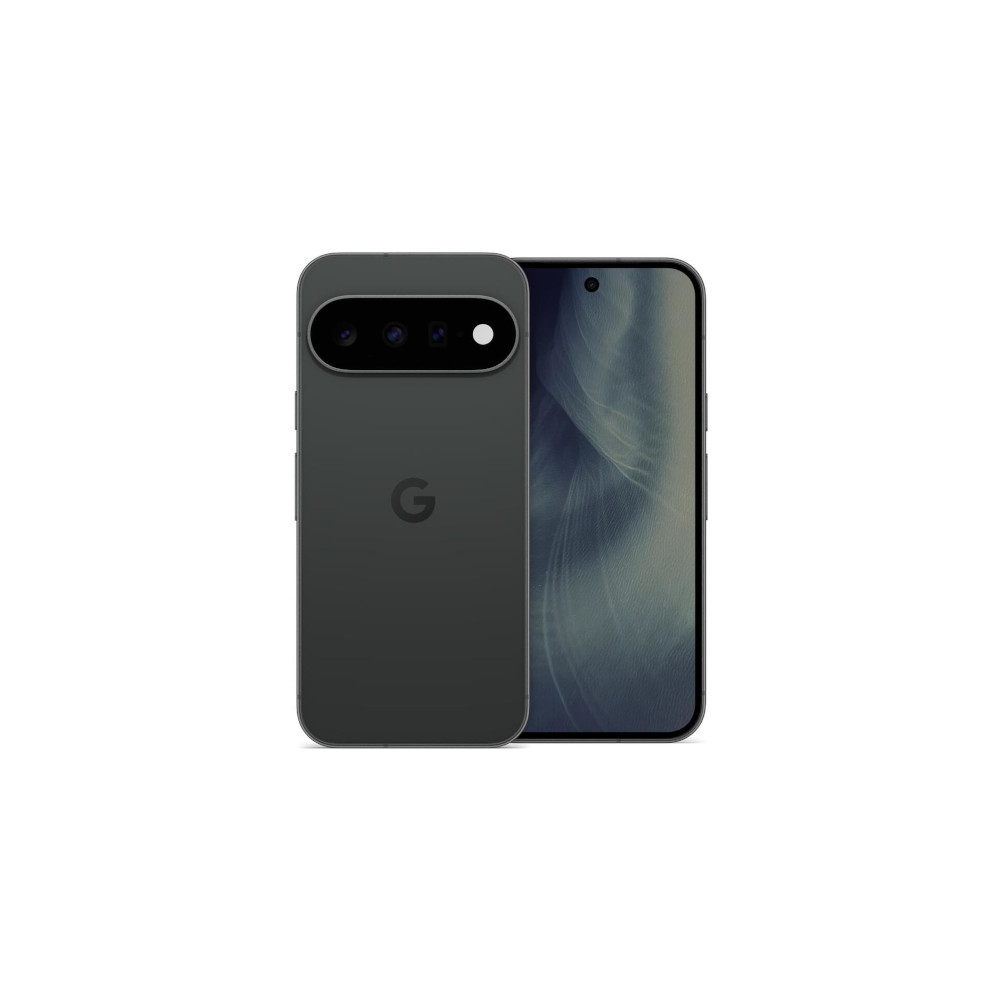
25W Pixelsnap magnetic charging
Larger 48MP main camera sensor
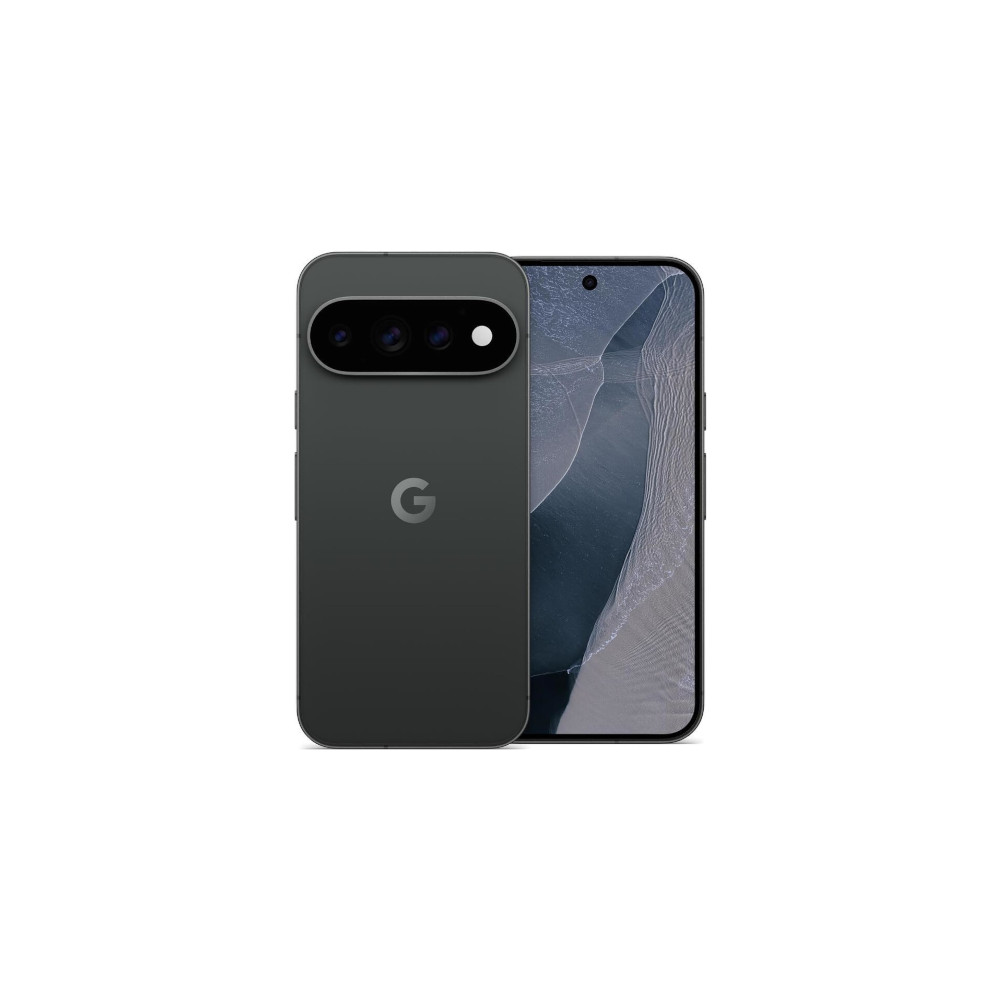
7 years of Android updates
Built-in magnets with Qi 2.2
On the whole, adding Camera Looks to Quick Access controls has been a game-changer for me. I didn’t really use the feature much before because it was pretty inconvenient to access. But now that it’s available directly from the main camera interface, I’ve found myself using different Looks a lot more often. This is easily one of the first settings I’d recommend changing after setting up your Pixel 11.
Conversation
Read what readers said or add your take.